Image Editing & Photography

Adobe Photoshop Keyboard Shortcuts

206 keyboard shortcuts to help you edit and retouch photos faster in Adobe Photoshop

Adobe Photoshop keyboard shortcuts

From Adobe, Adobe Photoshop is purpose-built to edit and retouch photos. It is one of the leading applications in the image editing & photography category.

Shortcut fluency in Adobe Photoshop separates casual users from power users. The more shortcuts you commit to muscle memory, the faster your work becomes.

With support for macOS and Windows, Adobe Photoshop reaches a wide range of users. This keyboard shortcuts guide covers the key combinations for each supported platform.

macOS Windows
206 shortcuts 15 categories
Visit Adobe Photoshop Official Website
Show shortcuts for:

Popular shortcuts 68 shortcuts

Cut
Cmd +X Ctrl +X Ctrl +X
Copy
Cmd +C Ctrl +C Ctrl +C
Paste
Cmd +V Ctrl +V Ctrl +V
Undo
Cmd +Z Ctrl +Z Ctrl +Z
Redo
Shift +Cmd +Z Ctrl +Shift +Z Ctrl +Shift +Z
Free Transform
Cmd +T Ctrl +T Ctrl +T
Desaturate
Shift +Cmd +U Ctrl +Shift +U Ctrl +Shift +U
Duplicate
Cmd +J Ctrl +J Ctrl +J
Merge Visible
Shift +Cmd +E Ctrl +Shift +E Ctrl +Shift +E
New
Cmd +N Ctrl +N Ctrl +N
Open
Cmd +O Ctrl +O Ctrl +O
Save
Cmd +S Ctrl +S Ctrl +S
Save As
Shift +Cmd +S Ctrl +Shift +S Ctrl +Shift +S
Zoom In
Cmd ++ Ctrl ++ Ctrl ++
Zoom Out
Cmd +- Ctrl +- Ctrl +-
Fit on Screen
Cmd +0 Ctrl +0 Ctrl +0
Actual Pixels
Cmd +1 Ctrl +1 Ctrl +1
Hide Extras
Cmd +H Ctrl +H Ctrl +H
Show/Hide Guides
Cmd +; Ctrl +; Ctrl +;
Lock Guides
Shift +Cmd +; Ctrl +Shift +; Ctrl +Shift +;
New Layer
Shift +Cmd +N Ctrl +Shift +N Ctrl +Shift +N
Create a new layer via cut
Shift +Cmd +J Ctrl +Shift +J Ctrl +Shift +J
Merge Down
Cmd +E Ctrl +E Ctrl +E
Select All
Cmd +A Ctrl +A Ctrl +A
Deselect
Cmd +D Ctrl +D Ctrl +D
Reselect
Shift +Cmd +D Ctrl +Shift +D Ctrl +Shift +D
Inverse
Shift +Cmd +I Ctrl +Shift +I Ctrl +Shift +I
Transform Again
Shift +Cmd +T Ctrl +Shift +T Ctrl +Shift +T
Fill
Shift +Backspace Shift +Backspace Shift +Backspace
Stroke
Shift +F Shift +F Shift +F
Toggle Layer Visibility
/ / /
Select the Move Tool
V V V
Select the Marquee Tool
M M M
Select the Lasso Tool
L L L
Select the Quick Selection Tool
W W W
Select the Crop Tool
C C C
Select the Eyedropper Tool
I I I
Select the Healing Brush Tool
J J J
Select the Brush Tool
B B B
Select the Clone Stamp Tool
S S S
Select the History Brush Tool
Y Y Y
Select the Eraser Tool
E E E
Select the Gradient Tool
G G G
Select the Paint Bucket Tool
K K K
Select the Blur Tool
R R R
Select the Dodge Tool
O O O
Select the Pen Tool
P P P
Select the Type Tool
T T T
Select the Path Selection Tool
A A A
Increase Brush Size
] ] ]
Decrease Brush Size
[ [ [
Cycle through Blend Modes
Shift ++ Shift ++ Shift ++
Cycle through Blend Modes
Shift +- Shift +- Shift +-
Opacity
0 0 0
Opacity
1 1 1
Opacity
2 2 2
Opacity
3 3 3
Opacity
4 4 4
Opacity
5 5 5
Opacity
6 6 6
Opacity
7 7 7
Opacity
8 8 8
Opacity
9 9 9
Show/Hide Layers Panel
F7 F7 F7
Show/Hide Info Panel
F8 F8 F8
Show/Hide Swatches Panel
F6 F6 F6
Show/Hide Tools Panel
Tab Tab Tab
Show/Hide all Panels
Shift +Tab Shift +Tab Shift +Tab

Invoke the search experience 1 shortcut

Search
Cmd +F Ctrl +F Ctrl +F

Using function keys 12 shortcuts

Edit - Fade
Shift +F5 Shift +F5 Shift +F5
Filter - Last Filter
Cmd +F Ctrl +F Ctrl +F
Filter - Last Filter
Shift +Cmd +F Ctrl +Shift +F Ctrl +Shift +F
View - Full Screen Mode with Menu Bar / View - Full Screen Mode / View - Standard Screen Mode
F F F
View - Show/Hide Extras
Cmd +H Ctrl +H Ctrl +H
View - Show/Hide Rulers
Cmd +R Ctrl +R Ctrl +R
View - Show/Hide Guides
Cmd +; Ctrl +; Ctrl +;
View - Lock Guides / View - Snap to Guides
Shift +Cmd +; Ctrl +Shift +; Ctrl +Shift +;
View - Show/Hide Grid
Cmd +' Ctrl +' Ctrl +'
View - Snap to Grid
Shift +Cmd +' Ctrl +Shift +' Ctrl +Shift +'
View - 100%
Cmd +1 Ctrl +1 Ctrl +1
View - Fit on Screen
Cmd +0 Ctrl +0 Ctrl +0

Selecting tools 31 shortcuts

Move Tool
V V V
Rectangular Marquee Tool
M M M
Elliptical Marquee Tool
Shift +M Shift +M Shift +M
Lasso Tool
L L L
Polygonal Lasso Tool / Magnetic Lasso Tool
Shift +L Shift +L Shift +L
Quick Selection Tool
W W W
Magic Wand Tool
Shift +W Shift +W Shift +W
Crop Tool
C C C
Perspective Crop Tool
Shift +C Shift +C Shift +C
Eyedropper Tool
I I I
3D Material Eyedropper Tool / Color Sampler Tool / Ruler Tool
Shift +I Shift +I Shift +I
Spot Healing Brush Tool
J J J
Patch Tool / Content-Aware Move Tool / Red Eye Tool
Shift +J Shift +J Shift +J
Brush Tool
B B B
Pencil Tool / Color Replacement Tool / Mixer Brush Tool
Shift +B Shift +B Shift +B
Clone Stamp Tool / Patter Stamp Tool
S S S
Art History Brush Tool
Y Y Y
Eraser Tool
E E E
Background Eraser Tool / Magic Eraser Tool
Shift +E Shift +E Shift +E
Gradient Tool / Paint Bucket Tool
G G G
3D Material Drop Tool
Shift +G Shift +G Shift +G
Blur Tool / Sharpen Tool / Smudge Tool / Rotate View Tool
R R R
Dodge Tool / Burn Tool / Sponge Tool
O O O
Pen Tool
P P P
Freeform Pen Tool / Add Anchor Point Tool / Delete Anchor Point Tool / Convert Point Tool
Shift +P Shift +P Shift +P
Horizontal Type Tool
T T T
Vertical Type Tool / Horizontal Type Mask Tool / Vertical Type Mask Tool
Shift +T Shift +T Shift +T
Path Selection Tool / Direct Selection Tool
A A A
Rectangle Tool / Rounded Rectangle Tool / Ellipse Tool / Polygon Tool / Line Tool / Custom Shape Tool
U U U
Hand Tool
H H H
Zoom Tool
Z Z Z
The BuildBox Macropad Puts Keyboard Shortcuts at Your Fingertips! Learn More

General 14 shortcuts

Decrease Brush Size / Decrease Brush Hardness
[ [ [
Increase Brush Size / Increase Brush Hardness
] ] ]
Default Foreground/Background colors
D D D
Switch Foreground/Background colors
X X X
Cancel any modal dialog window (including the Start Workspace)
Esc Esc Esc
Select the first edit field of the tool bar
Enter Enter Enter
Navigate between fields
Tab Tab Tab
Navigate between fields in opposite direction
Shift +Tab Shift +Tab Shift +Tab
Change Cancel to Reset
Opt Alt Alt
Toggle Preserve Transparency
/ / /
Previous Brush
, , ,
Next Brush
. . .
First Brush
Less Less Less
Last Brush
Greater Greater Greater

Layers 2 shortcuts

New layer via copy
Ctrl +J Ctrl +J Ctrl +J
New layer via cut
Ctrl +Shift +J Ctrl +Shift +J Ctrl +Shift +J

Selection 2 shortcuts

Add to a selection
Shift Shift Shift
Inverse Selection
Shift +F7 Shift +F7 Shift +F7

Tools 22 shortcuts

Cycle through tools with the same shortcut key
Shift Shift Shift
Cycle through hidden tools
Opt Alt Alt
Move tool / Artboard tool
V V V
Rectangular Marquee tool / Elliptical Marquee tool
M M M
Lasso tool / Polygonal Lasso tool / Magnetic Lasso tool
L L L
Magic Wand tool / Quick Selection tool
W W W
Crop tool / Slice tool / Slice Select tool / Perspective Crop tool
C C C
Eyedropper tool / Color Sampler tool / Ruler tool / Note tool
I I I
Spot Healing Brush tool / Healing Brush tool / Patch tool / Red Eye tool / Content-Aware Move tool
J J J
Brush tool / Pencil tool / Color Replacement tool / Mixer Brush tool
B B B
Clone Stamp tool / Pattern Stamp tool
S S S
Art History Brush tool
Y Y Y
Eraser tool / Background Eraser tool / Magic Eraser tool
E E E
Gradient tool / Paint Bucket tool
G G G
Dodge tool / Burn tool / Sponge tool
O O O
Freeform Pen tool
P P P
Horizontal Type tool / Vertical Type tool / Horizontal Type mask tool / Vertical Type mask tool
T T T
Path Selection tool / Direct Selection tool
A A A
Rectangle tool / Rounded Rectangle tool / Ellipse tool / Polygon tool / Line tool / Custom Shape tool
U U U
Hand tool
H H H
Rotate View tool
R R R
Zoom tool
Z Z Z

View 4 shortcuts

Zoom In
Ctrl ++ Ctrl ++ Ctrl ++
Zoom Out
Ctrl +- Ctrl +- Ctrl +-
Zoom to Fit
Ctrl +0 Ctrl +0 Ctrl +0
Zoom to 100%
Ctrl +1 Ctrl +1 Ctrl +1

Panels 5 shortcuts

Show/Hide Brush panel
F5 F5 F5
Show/Hide Color panel
F6 F6 F6
Show/Hide Layers panel
F7 F7 F7
Show/Hide Info panel
F8 F8 F8
Show/Hide Actions panel
F9 F9 F9

Other 10 shortcuts

Start Help
F1 F1 F1
Cut
F2 F2 F2
Copy
F3 F3 F3
Paste
F4 F4 F4
Fill
Shift +F5 Shift +F5 Shift +F5
Feather Selection
Shift +F6 Shift +F6 Shift +F6
Revert
F12 F12 F12
Search across Photoshop UI, Help & Learn content, and Adobe Stock assets. F or more information, see Photoshop search.
Ctrl +F Ctrl +F Ctrl +F
Delate brush tool or swatch
Opt Alt Alt
Toggle auto-select with move tool
Ctrl Ctrl Ctrl

View images 21 shortcuts

Cycle through open documents
Cmd +Tab Ctrl +Tab Ctrl +Tab
Switch to previous document
Shift +Cmd +Tab Ctrl +Shift +Tab Ctrl +Tab
Close a file in Photoshop and open Bridge
Shift +Cmd +W Ctrl +Shift +W Ctrl +W
Toggle between Standard mode and Q uick Mask mode
Q Q Q
Toggle (f orward) between Standard screen mode, Full screen mode with menu bar, and Full screen mode
F F F
Toggle (backward) between Standard screen mode, F ull screen mode with menu bar, and Full screen mode
Shift +F Shift +F Shift +F
Toggle (f orward) canvas color (or right-click canvas background and select color)
Space +F Space +F Ctrl +F
Toggle (backward) canvas color
Shift +Space +F Shift +Space +F Ctrl +Shift +F
Magnify 1 00%
Ctrl +1 Ctrl +1 Ctrl +1
Switch to Hand tool (when not in text-edit mode) / Move Zoom marquee while dragging with the Zoom tool / Scroll image with Hand tool
Space Space Space
Simultaneously pan multiple documents with Hand tool
Shift Shift Shift
Switch to Zoom In tool
Ctrl +Space Ctrl +Space Ctrl +Space
Switch to Zoom Out tool
Opt +Space Alt +Space Alt +Space
Apply zoom percentage, and keep zoom percentage box active
Shift +Enter Shift +Enter Shift +Enter
Zoom in on specified area of an image
Ctrl Ctrl Ctrl
Temporarily zoom into an image
H H H
Scroll up 1 screen / Scroll up 10 units
PageUp PageUp PageUp
Scroll down 1 screen / Scroll down 10 units
PageDown PageDown PageDown
Move view to upper-left corner
Home Home Home
Move view to lower-right corner
End End End
Toggle layer mask on/off as rubylith (layer mask must be selected)
\ \ \

Using puppet warp 6 shortcuts

Cancel completely
Esc Esc Esc
Undo last pin adjustment
Ctrl +Z Ctrl +Z Ctrl +Z
Select a ll pins
Ctrl +A Ctrl +A Ctrl +A
D eselect all pins
Ctrl +D Ctrl +D Ctrl +D
Select multiple pins / Move multiple selected pins
Shift Shift Shift
Temporarily h ide pins
H H H

Using refine edge 7 shortcuts

Open the R efine Edge dialog box
Ctrl +Opt +R Ctrl +Alt +R Ctrl +Alt +R
Cycle (f orward) through preview modes
F F F
Cycle (backward) through preview modes
Shift +F Shift +F Shift +F
Toggle between original image and selection preview
X X X
Toggle between original selection and refined version
P P P
Toggle radius preview on and off
J J J
Toggl e between Refine Radius and Erase Refinements tools
Shift +E Shift +E Shift +E

Using Filter Gallery 1 shortcut

Apply a new filter on top of selected
Opt Alt Alt
BuildBox Macropad

We've Built 10s Of 1000s Of Keyboard Shortcuts Into The BuildBox Macropad

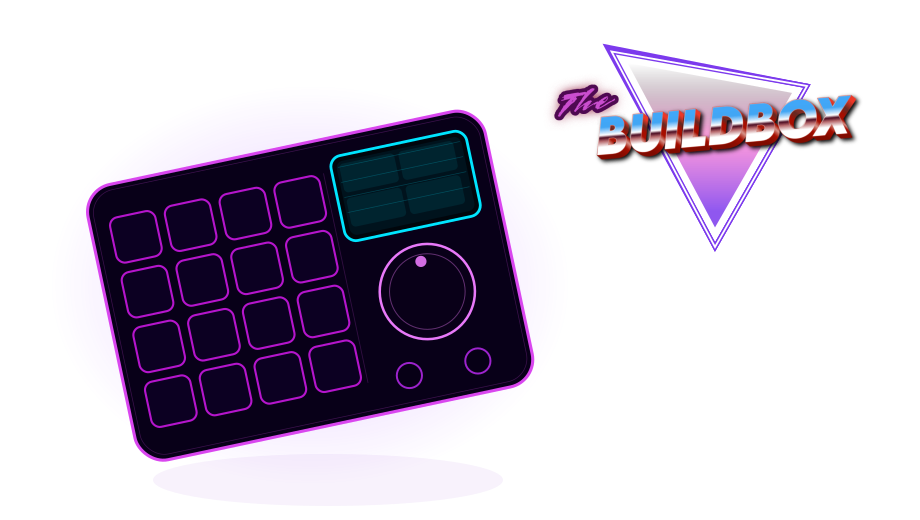
The BuildBox Macropad is the ultimate shortcut machine. One device with up to 160 configurable shortcuts for apps like Adobe Photoshop available at your fingertips, a crystal clear display showing what every key does, and a hall-effect scroll wheel for scrubbing through video, audio and graphic editing applications like butter!

Drop your email below to be eligible for our first production run of 500 BuildBox units, at a HUGE discount price:

Keyboard Shortcuts for Similar Applications