File Management

Finder Keyboard Shortcuts

139 keyboard shortcuts to help you browse and manage files on mac faster in Finder

Finder keyboard shortcuts

Built by Apple, Finder provides a full-featured environment to browse and manage files on mac. It is a staple in the file management space.

Learning keyboard shortcuts in Finder can dramatically speed up repetitive tasks and free you to focus on the creative work that matters.

macOS
139 shortcuts 6 categories
Visit Finder Official Website

General 30 shortcuts

Cut the selected item and copy it to the Clipboard
Cmd +X
Copy the selected item to the Clipboard
Cmd +C
Paste the contents of the Clipboard into the current document or app
Cmd +V
Undo the previous command
Cmd +Z
Redo the previous command
Shift +Cmd +Z
Select All items
Cmd +A
Find items in a document or open a Find window
Cmd +F
Find the next occurrence of the item previously found
Cmd +G
Find the previous occurrence of the item previously found
Shift +Cmd +G
Open the selected item, or open a dialog to select a file to open
Cmd +O
Open a print dialog
Cmd +P
Quit the current app
Cmd +Q
Save the current document
Cmd +S
Open a new tab
Cmd +T
Open a new Finder window
Cmd +N
Close the front window
Cmd +W
Force quit an app
Opt +Cmd +Esc
Show or hide the Spotlight search field
Cmd +Space
Perform a Spotlight search from a Finder window
Opt +Cmd +Space
Show the Character Viewer
Ctrl +Cmd +Space
Show the Character Viewer
Fn +E
Use or stop using the app in full screen
Ctrl +Cmd +F
Use Quick Look to preview the selected item
Space
Switch to the next most recently used app
Cmd +Tab
Switch between the windows of the app you're using
Cmd +`
Take a screenshot
Shift +Cmd +5
Create a new empty folder in the Finder
Shift +Cmd +N
Create a new folder that contains the currently selected items
Ctrl +Cmd +N
Open settings (preferences) for the front app
Cmd +,
Create a Quick Note
Fn +Q

Sleep, Log Out, and Shut Down 3 shortcuts

Lock your screen
Ctrl +Cmd +Q
Log out of your macOS user account
Shift +Cmd +Q
Log out immediately without confirming
Opt +Shift +Cmd +Q

Finder 70 shortcuts

Duplicate the selected files
Cmd +D
Eject the selected disk or volume
Cmd +E
Start a Spotlight search in the Finder window
Cmd +F
Show the Get Info window for a selected file
Cmd +I
Show the original file for the selected alias or refresh/reload the page
Cmd +R
Open the Computer window
Shift +Cmd +C
Open the desktop folder
Shift +Cmd +D
Open the Recents window
Shift +Cmd +F
Open a Go to Folder window
Shift +Cmd +G
Open the Home folder of the current macOS user account
Shift +Cmd +H
Open iCloud Drive
Shift +Cmd +I
Open the Network window
Shift +Cmd +K
Open the Downloads folder
Opt +Cmd +L
Create a new folder
Shift +Cmd +N
Open the Documents folder
Shift +Cmd +O
Show or hide the Preview pane in Finder windows
Shift +Cmd +P
Open the AirDrop window
Shift +Cmd +R
Show or hide the tab bar in Finder windows
Shift +Cmd +T
Add selected Finder item to the Dock
Ctrl +Shift +Cmd +T
Open the Utilities folder
Shift +Cmd +U
Show or hide the Dock
Opt +Cmd +D
Add the selected item to the sidebar
Ctrl +Cmd +T
Hide or show the path bar in Finder windows
Opt +Cmd +P
Hide or show the Sidebar in Finder windows
Opt +Cmd +S
Hide or show the status bar in Finder windows
Cmd +/
Show View Options
Cmd +J
Open the Connect to Server window
Cmd +K
Make an alias of the selected item
Ctrl +Cmd +A
Open a new Finder window
Cmd +N
Create a new Smart Folder
Opt +Cmd +N
Show or hide the tab bar when a single tab is open in the current Finder window
Cmd +T
Show or hide the toolbar when a single tab is open in the current Finder window
Opt +Cmd +T
Move the files in the Clipboard from their original location to the current location
Opt +Cmd +V
Use Quick Look to preview the selected files
Cmd +Y
View a Quick Look slideshow of the selected files
Opt +Cmd +Y
View the items in the Finder window as icons
Cmd +1
View the items in a Finder window as a list
Cmd +2
View the items in a Finder window in columns
Cmd +3
View the items in a Finder window in a gallery
Cmd +4
Go to the previous folder
Cmd +[
Go to the next folder
Cmd +]
Open the folder that contains the current folder
Cmd +Up
Open the folder that contains the current folder in a new window
Ctrl +Cmd +Up
Open the selected item
Cmd +Down
Move the selected item to the Trash
Cmd +Delete
Empty the Trash
Shift +Cmd +Delete
Empty the Trash without confirmation dialog
Opt +Shift +Cmd +Delete
Turn video mirroring on or off
Cmd +BrightnessDown
Open Displays settings
Opt +BrightnessUp
Open Mission Control settings
Opt +Mission Control
Show the desktop
Cmd +Mission Control
Show the desktop
Fn +F11
Open Mission Control
Ctrl +Up
Show all windows of the front app
Ctrl +Down
Show or hide the Dock
Fn +A
Show or hide Control Center
Fn +C
Start or stop dictation
Fn +D
Show or hide Notification Center
Fn +N
Show or hide Apps or Launchpad
Shift +Fn +A
Open the Character Viewer
Fn
Open or close Type to Siri
Cmd
Select the previous input source
Ctrl +Space
Select the next input source
Ctrl +Opt +Space
Open or close the original window
Opt +DoubleClick
Open a folder in a separate tab or window
Cmd +DoubleClick
Move the dragged item to the other volume, instead of copying it
Cmd +dragging
Copy the dragged item
Opt +dragging
Make an alias of the dragged item
Opt +Cmd +dragging
Manually open folder
Right
Manually close folder
Left
The BuildBox Macropad Puts Keyboard Shortcuts at Your Fingertips! Learn More

Vision 3 shortcuts

Invert colors
Ctrl +Opt +Cmd +8
Reduce contrast and increase contrast
Ctrl +Opt +Cmd +,
Reduce contrast and increase contrast
Ctrl +Opt +Cmd +.

Keyboard Focus 30 shortcuts

Move focus to the menu bar
Ctrl +F2
Move focus to the menu bar
Ctrl +Fn +F2
Move focus to the Dock
Ctrl +F3
Move focus to the Dock
Ctrl +Fn +F3
Move focus to the active window or next window
Ctrl +F4
Move focus to the active window or next window
Ctrl +Fn +F4
Move focus to the window toolbar
Ctrl +F5
Move focus to the window toolbar
Ctrl +Fn +F5
Move focus to the floating window
Ctrl +F6
Move focus to the floating window
Ctrl +Fn +F6
Move focus to the previous panel
Ctrl +Shift +F6
Change the way Tab moves focus—between navigation of all controls on the screen, or only text boxes and lists.
Ctrl +F7
Change the way Tab moves focus—between navigation of all controls on the screen, or only text boxes and lists.
Ctrl +Fn +F7
Move focus to the status menu in the menu bar
Ctrl +F8
Move focus to the status menu in the menu bar
Ctrl +Fn +F8
Activate the next open window in the front app
Cmd +`
Activate the previous open window in the front app
Shift +Cmd +`
Move the focus to the window drawer
Opt +Cmd +`
Move to next control
Tab
Move to previous control
Shift +Tab
Move to the next control when a text field is selected
Ctrl +Tab
Move to the previous grouping of controls
Ctrl +Shift +Tab
Move to the adjacent item in a list, tab group, or menu, or move sliders and adjusters (Up Arrow to increase values, Down Arrow to decrease values)
Up
Move to the adjacent item in a list, tab group, or menu, or move sliders and adjusters (Up Arrow to increase values, Down Arrow to decrease values)
Down
Move to the adjacent item in a list, tab group, or menu, or move sliders and adjusters (Up Arrow to increase values, Down Arrow to decrease values)
Left
Move to the adjacent item in a list, tab group, or menu, or move sliders and adjusters (Up Arrow to increase values, Down Arrow to decrease values)
Right
Move to a control adjacent to the text field
Ctrl +Up
Move to a control adjacent to the text field
Ctrl +Down
Move to a control adjacent to the text field
Ctrl +Left
Move to a control adjacent to the text field
Ctrl +Right

Other Accessibility Features 3 shortcuts
Show the Accessibility Shortcuts panel
Opt +Cmd +F5
Show the Accessibility Shortcuts panel
Opt +Cmd +Fn +F5
Show the Accessibility Shortcuts panel
Touch ID triple-press
BuildBox Macropad

We've Built 10s Of 1000s Of Keyboard Shortcuts Into The BuildBox Macropad

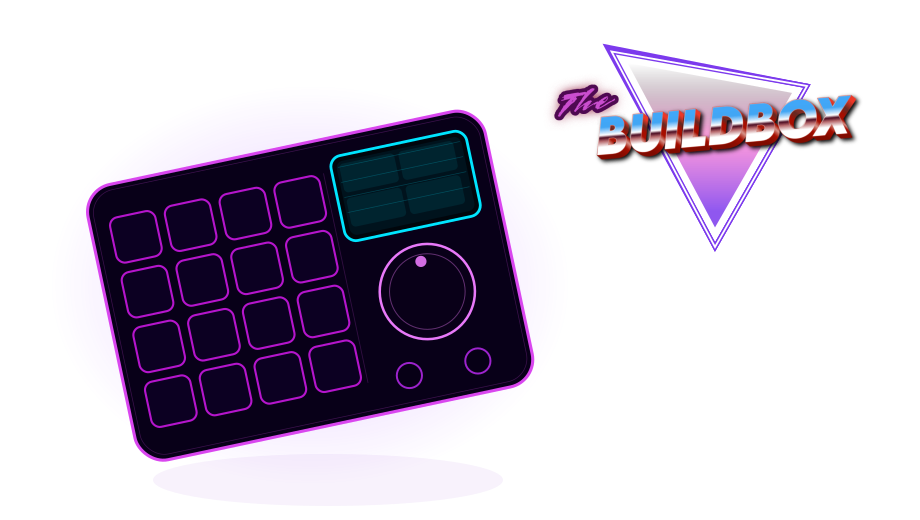
The BuildBox Macropad is the ultimate shortcut machine. One device with up to 160 configurable shortcuts for apps like Finder available at your fingertips, a crystal clear display showing what every key does, and a hall-effect scroll wheel for scrubbing through video, audio and graphic editing applications like butter!

Drop your email below to be eligible for our first production run of 500 BuildBox units, at a HUGE discount price:

Keyboard Shortcuts for Similar Applications