Office & Documents

LibreOffice Impress Keyboard Shortcuts

We collected 81 keyboard shortcuts for LibreOffice Impress so you can present with open tools faster

LibreOffice Impress keyboard shortcuts

LibreOffice Impress is an office & documents tool from The Document Foundation that enables users to present with open tools. It is trusted by creative and technical professionals worldwide.

For LibreOffice Impress users, mastering keyboard shortcuts is one of the fastest ways to boost productivity. Quick access to tools and commands keeps the creative flow unbroken.

LibreOffice Impress is available on macOS, Windows, and Linux, making these shortcuts useful no matter which operating system you prefer.

macOS Windows Linux
81 shortcuts 11 categories
Visit LibreOffice Impress Official Website
Show shortcuts for:

File 6 shortcuts

Open
Cmd +O Ctrl +O Ctrl +O
Save
Cmd +S Ctrl +S Ctrl +S
Save As
Shift +Cmd +S Ctrl +Shift +S Ctrl +Shift +S
Print
Cmd +P Ctrl +P Ctrl +P
Close
Cmd +W Ctrl +W Ctrl +W
New
Cmd +N Ctrl +N Ctrl +N

Edit 10 shortcuts

Undo
Cmd +Z Ctrl +Z Ctrl +Z
Redo
Shift +Cmd +Z Ctrl +Y Ctrl +Y
Cut
Cmd +X Ctrl +X Ctrl +X
Copy
Cmd +C Ctrl +C Ctrl +C
Paste
Cmd +V Ctrl +V Ctrl +V
Paste Special
Shift +Cmd +V Ctrl +Shift +V Ctrl +Shift +V
Select All
Cmd +A Ctrl +A Ctrl +A
Find and Replace
Cmd +F Ctrl +F Ctrl +F
Replace
Opt +Cmd +F Ctrl +H Ctrl +H
Redo
Shift +Cmd +Z Ctrl +Shift +Z Ctrl +Shift +Z

View 3 shortcuts

Zoom In
Cmd ++ Ctrl ++ Ctrl ++
Zoom Out
Cmd +- Ctrl +- Ctrl +-
Zoom 100%
Cmd +0 Ctrl +0 Ctrl +0

Insert 1 shortcut

Insert Break (Page, Column, etc.)
Cmd +Enter Ctrl +Enter Ctrl +Enter

Format 7 shortcuts

Bold
Cmd +B Ctrl +B Ctrl +B
Italic
Cmd +I Ctrl +I Ctrl +I
Underline
Cmd +U Ctrl +U Ctrl +U
Superscript
Shift +Cmd +P Ctrl +Shift +P Ctrl +Shift +P
Subscript
Shift +Cmd +B Ctrl +Shift +B Ctrl +Shift +B
Increase Font Size
Cmd +] Ctrl +] Ctrl +]
Decrease Font Size
Cmd +[ Ctrl +[ Ctrl +[

Tools 2 shortcuts

Spelling and Grammar Check
F7 F7 F7
Thesaurus
Cmd +F7 Ctrl +F7 Ctrl +F7

Navigation 12 shortcuts

Go to the beginning of the line
Cmd +Left Home Home
Go to the end of the line
Cmd +Right End End
Go up one paragraph
Opt +Up Ctrl +Up Ctrl +Up
Go down one paragraph
Opt +Down Ctrl +Down Ctrl +Down
Go to the top of the document / Go to First Slide
Cmd +Home Ctrl +Home Ctrl +Home
Go to the end of the document / Go to Last Slide
Cmd +End Ctrl +End Ctrl +End
Go back one word
Opt +Left Ctrl +Left Ctrl +Left
Go forward one word
Opt +Right Ctrl +Right Ctrl +Right
Scroll up one screen / Go to Previous Slide
PageUp PageUp PageUp
Scroll down one screen / Go to Next Slide
PageDown PageDown PageDown
Go to the next sheet
Cmd +PageDown Ctrl +PageDown Ctrl +PageDown
Go to the previous sheet
Cmd +PageUp Ctrl +PageUp Ctrl +PageUp
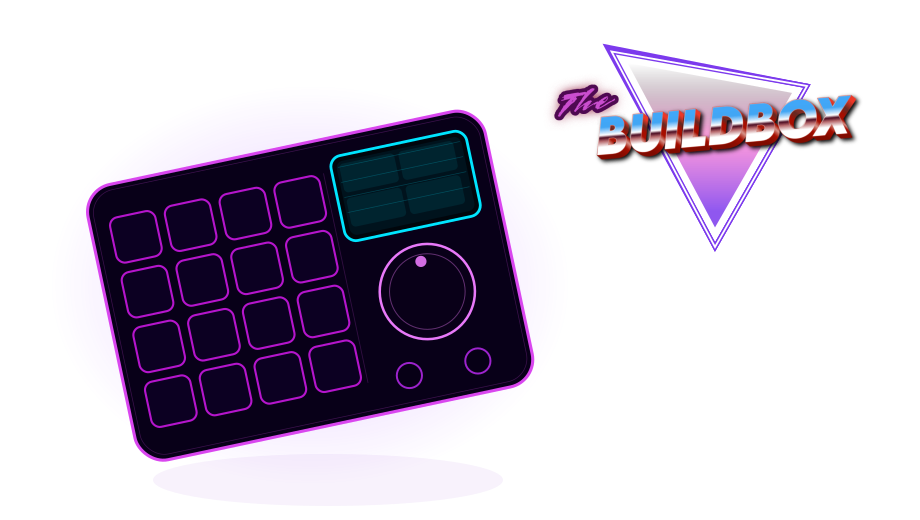
The BuildBox Macropad Puts Keyboard Shortcuts at Your Fingertips! Learn More

Selection 13 shortcuts

Select to the beginning of the line
Shift +Cmd +Left Shift +Home Shift +Home
Select to the end of the line
Shift +Cmd +Right Shift +End Shift +End
Select up one paragraph
Opt +Shift +Up Ctrl +Shift +Up Ctrl +Shift +Up
Select down one paragraph
Opt +Shift +Down Ctrl +Shift +Down Ctrl +Shift +Down
Select to the top of the document
Shift +Cmd +Home Ctrl +Shift +Home Ctrl +Shift +Home
Select to the end of the document
Shift +Cmd +End Ctrl +Shift +End Ctrl +Shift +End
Select back one word
Opt +Shift +Left Ctrl +Shift +Left Ctrl +Shift +Left
Select forward one word
Opt +Shift +Right Ctrl +Shift +Right Ctrl +Shift +Right
Select one character to the left
Shift +Left Shift +Left Shift +Left
Select one character to the right
Shift +Right Shift +Right Shift +Right
Select one line up
Shift +Up Shift +Up Shift +Up
Select one line down
Shift +Down Shift +Down Shift +Down
Select all
Cmd +A Ctrl +A Ctrl +A

Slide Show 18 shortcuts

Start a slide show from the beginning
F5 F5 F5
Start a slide show from the current slide
Shift +F5 Shift +F5 Shift +F5
Next Slide or Animation Step / Advance to the next slide or animation effect
Space Space Space
Next Slide or Animation Step / Go to a specific slide
Enter Enter Enter
Next Slide or Animation Step
Right Right Right
Next Slide or Animation Step
Down Down Down
Previous Slide or Animation Step
Backspace Backspace Backspace
Previous Slide or Animation Step
Left Left Left
Previous Slide or Animation Step
Up Up Up
Go to specific slide
G G G
End Slide Show / Stop slide show
Esc Esc Esc
Black Screen
B B B
Black Screen
. . .
White Screen
W W W
White Screen
, , ,
Advance to the next slide without animation effects
Opt +PageDown Alt +PageDown Alt +PageDown
Return to previous slide
Opt +PageUp Alt +PageUp Alt +PageUp
Stop slide show
- - -

General 5 shortcuts

Open a document
Cmd +O Ctrl +O Ctrl +O
Select a placeholder / Move to the next placeholder or insert a new slide / Create an object
Cmd +Enter Ctrl +Enter Ctrl +Enter
Navigate to the Drawing bar
F6 F6 F6
Return to the document / Select an object
Cmd +F6 Ctrl +F6 Ctrl +F6
Choose a command from the context menu for the object
Shift +F10 Shift +F10 Shift +F10

Slide Sorter 4 shortcuts

Select/Deselect slide
Space Space Space
Copy Slide
Cmd +C Ctrl +C Ctrl +C
Paste Slide
Cmd +V Ctrl +V Ctrl +V
Cut Slide
Cmd +X Ctrl +X Ctrl +X
BuildBox Macropad

We've Built 10s Of 1000s Of Keyboard Shortcuts Into The BuildBox Macropad

The BuildBox Macropad is the ultimate shortcut machine. One device with up to 160 configurable shortcuts for apps like LibreOffice Impress available at your fingertips, a crystal clear display showing what every key does, and a hall-effect scroll wheel for scrubbing through video, audio and graphic editing applications like butter!

Drop your email below to be eligible for our first production run of 500 BuildBox units, at a HUGE discount price:

Keyboard Shortcuts for Similar Applications