Video Production

Adobe After Effects Keyboard Shortcuts

323 shortcuts to create motion graphics and vfx faster — the complete Adobe After Effects keyboard shortcut reference

Adobe After Effects keyboard shortcuts

Adobe After Effects is a video production tool from Adobe that enables users to create motion graphics and vfx. It is trusted by creative and technical professionals worldwide.

Keyboard shortcuts are essential for working efficiently in Adobe After Effects. Memorizing even a handful of key combinations can cut hours from a weekly workflow.

macOS Windows
323 shortcuts 20 categories
Visit Adobe After Effects Official Website
Show shortcuts for:

General 20 shortcuts

Select all
Cmd +A Ctrl +A Ctrl +A
Deselect all
Shift +Cmd +A Ctrl +Shift +A Ctrl +Shift +A
Rename selected layer, composition, folder, effect, group, or mask / Open selected layer, composition, or footage item
Enter Enter Enter
Move selected layers, masks, effects, or render items down (back) or up (forward) in stacking order
Opt +Cmd +Down Ctrl +Alt +Down Ctrl +Alt +Down
Move selected layers, masks, effects, or render items up (forward) in stacking order
Opt +Cmd +Up Ctrl +Alt +Up Ctrl +Alt +Up
Move selected layers, masks, effects, or render items to bottom (back) or top (front) of stacking order
Opt +Shift +Cmd +Down Ctrl +Alt +Shift +Down Ctrl +Alt +Shift +Down
Move selected layers, masks, effects, or render items to top (front) of stacking order
Opt +Shift +Cmd +Up Ctrl +Alt +Shift +Up Ctrl +Alt +Shift +Up
Extend selection to next item in Project panel, Render Queue panel, or Effect Controls panel
Shift +Down Shift +Down Shift +Down
Extend selection to previous item in Project panel, Render Queue panel, or Effect Controls panel
Shift +Up Shift +Up Shift +Up
Duplicate selected layers, masks, effects, text selectors, animators, puppet meshes, shapes, render items, output modules, or compositions
Cmd +D Ctrl +D Ctrl +D
Quit
Cmd +Q Ctrl +Q Ctrl +Q
Undo
Cmd +Z Ctrl +Z Ctrl +Z
Redo
Shift +Cmd +Z Ctrl +Shift +Z Ctrl +Shift +Z
Purge All Memory
Opt +Cmd +/ Ctrl +Alt +/ Ctrl +Alt +/
Interrupt running a script
Esc Esc Esc
Display filename corresponding to the frame at the current time in the Info panel
Opt +Cmd +E Ctrl +Alt +E Ctrl +Alt +E
Modify Scale, constrained to footage frame aspect ratio
Shift +Drag Shift +Drag
Scale and reposition selected layers to fit composition
Opt +Cmd +F Ctrl +Alt +F
Scale and reposition selected layers to fit composition width, preserving image aspect ratio for each layer
Opt +Shift +Cmd +H Ctrl +Alt +Shift +H
Scale and reposition selected layers to fit composition height, preserving image aspect ratio for each layer
Opt +Shift +Cmd +G Ctrl +Alt +Shift +G

Projects 8 shortcuts

New project
Opt +Cmd +N Ctrl +Alt +N Ctrl +Alt +N
Open project
Cmd +O Ctrl +O Ctrl +O
Open most recent project
Opt +Shift +Cmd +P Ctrl +Alt +Shift +P Ctrl +Alt +Shift +P
New folder in Project panel
Opt +Shift +Cmd +N Ctrl +Alt +Shift +N Ctrl +Alt +Shift +N
Open Project Settings dialog box
Opt +Shift +Cmd +K Ctrl +Alt +Shift +K Ctrl +Alt +Shift +K
Find in Project panel
Cmd +F Ctrl +F Ctrl +F
Cycle through color bit depths for project
Opt +Click Alt +Click Alt +Click
Open Project Settings dialog box
Click Click Click

Preferences 2 shortcuts

Open Preferences dialog box
Opt +Cmd +; Ctrl +Alt +; Ctrl +Alt +;
Restore default preferences settings
Opt +Shift +Cmd +Start Ctrl +Alt +Shift +Start Ctrl +Alt +Shift +Start

Panels, viewers, workspaces, and windows 29 shortcuts

Open or close Project panel
Cmd +0 Ctrl +0 Ctrl +0
Open or close Render Queue panel
Opt +Cmd +0 Ctrl +Alt +0 Ctrl +Alt +0
Open or close Tools panel
Cmd +1 Ctrl +1 Ctrl +1
Open or close Info panel
Cmd +2 Ctrl +2 Ctrl +2
Open or close Preview panel
Cmd +3 Ctrl +3 Ctrl +3
Open or close Audio panel
Cmd +4 Ctrl +4 Ctrl +4
Open or close Effects & Presets panel
Cmd +5 Ctrl +5 Ctrl +5
Open or close Character panel
Cmd +6 Ctrl +6 Ctrl +6
Open or close Paragraph panel
Cmd +7 Ctrl +7 Ctrl +7
Open or close Paint panel
Cmd +8 Ctrl +8 Ctrl +8
Open or close Brushes panel
Cmd +9 Ctrl +9 Ctrl +9
Open or close Effect Controls panel for selected layer
F3 F3 F3
Open or close Effect Controls panel for selected layer
Opt +Cmd +T Ctrl +Shift +T Ctrl +Shift +T
Open Flowchart panel for project flowchart
Cmd +F11 Ctrl +F11 Ctrl +F11
Switch to workspace
Shift +F10 Shift +F10 Shift +F10
Switch to workspace
Shift +F11 Shift +F11 Shift +F11
Switch to workspace
Shift +F12 Shift +F12 Shift +F12
Close active viewer or panel (closes content first)
Cmd +W Ctrl +W Ctrl +W
Close active panel or all viewers of type of active viewer (closes content first). For example, if a Timeline panel is active, this command closes all Timeline panels.
Shift +Cmd +W Ctrl +Shift +W Ctrl +Shift +W
Split the frame containing the active viewer and create a viewer with opposite locked/unlocked state
Opt +Shift +Cmd +N Ctrl +Alt +Shift +N Ctrl +Alt +Shift +N
Maximize or restore panel under pointer
` ` `
Resize application window or floating window to fit screen. (Press again to resize window so that contents fill the screen.)
Cmd +\ Ctrl +\ Ctrl +\
Move application window or floating window to main monitor; resize window to fit screen. (Press again to resize window so that contents fill the screen.)
Opt +Cmd +\ Ctrl +Alt +\ Ctrl +Alt +\
Toggle activation between Composition panel and Timeline panel for current composition
\ \ \
Cycle to previous or next item in active viewer (for example, cycle through open compositions)
Shift +, Shift +, Shift +,
Cycle to previous or next item in active viewer (for example, cycle through open compositions)
Shift +. Shift +. Shift +.
Cycle to previous or next panel in active frame (for example, cycle through open Timeline panels)
Opt +Shift +, Alt +Shift +, Alt +Shift +,
Cycle to previous or next panel in active frame (for example, cycle through open Timeline panels)
Opt +Shift +. Alt +Shift +. Alt +Shift +.
Activate a view in a multi-view layout in the Composition panel without affecting layer selection
Middle mouse button Middle mouse button Middle mouse button

Activate tools 18 shortcuts

Cycle through tools
Opt +Click Alt +Click Alt +Click
Activate Selection tool
V V V
Activate Hand tool
H H H
Temporarily activate Hand tool
Space Space Space
Temporarily activate Hand tool
Middle mouse button Middle mouse button Middle mouse button
Activate Zoom In tool
Z Z Z
Activate Zoom Out tool / Temporarily convert Selection tool to Shape Duplication tool
Opt Alt Alt
Activate Rotation tool
W W W
Activate Roto Brush tool / Activate Refine Edge tool
Opt +W Alt +W Alt +W
Activate and cycle through Camera tools (Unified Camera, Orbit Camera, Track XY Camera, and Track Z Camera)
C C C
Activate Pan Behind tool
Y Y Y
Activate and cycle through mask and shape tools (Rectangle, Rounded Rectangle, Ellipse, Polygon, Star)
Q Q Q
Activate and cycle through Type tools (Horizontal and Vertical)
Cmd +T Ctrl +T Ctrl +T
Activate and cycle between the Pen and Mask Feather tools. (Note: You can turn off this setting in the Preferences dialog box.)
G G G
Temporarily activate Selection tool when a pen tool is selected / Temporarily convert Selection tool to Direct Selection tool
Cmd Ctrl Ctrl
Temporarily activate Pen tool when the Selection tool is selected and pointer is over a path (Add Vertex tool when pointer is over a segment; Convert Vertex tool when pointer is over a vertex)
Opt +Cmd Ctrl +Alt Ctrl +Alt
Activate and cycle through Brush, Clone Stamp, and Eraser tools
Cmd +B Ctrl +B Ctrl +B
Activate and cycle through Puppet tools
Cmd +P Ctrl +P Ctrl +P

Compositions and the work area 9 shortcuts

New composition
Cmd +N Ctrl +N Ctrl +N
Open Composition Settings dialog box for selected composition
Cmd +K Ctrl +K Ctrl +K
Set beginning or end of work area to current time
B B B
Set beginning or end of work area to current time
N N N
Set work area to duration of selected layers or, if no layers are selected, set work area to composition duration
Opt +Cmd +B Ctrl +Alt +B Ctrl +Alt +B
Open Composition Mini-Flowchart for active composition
Tab Tab Tab
Activate the most recently active composition that is in the same composition hierarchy (network of nested compositions) as the currently active composition
Shift +Esc Shift +Esc Shift +Esc
Trim Composition to work area
Shift +Cmd +X Ctrl +Shift +X Ctrl +Shift +X
New Composition from selection
Cmd +\ Alt +\ Alt +\

Time navigation 19 shortcuts

Go to specific time
Opt +Shift +J Alt +Shift +J Alt +Shift +J
Go to beginning or end of work area
Shift +Home Shift +Home Shift +Home
Go to beginning or end of work area
Shift +End Shift +End Shift +End
Go to previous or next visible item in time ruler (keyframe, layer marker, work area beginning or end)
J J J
Go to previous or next visible item in time ruler (keyframe, layer marker, work area beginning or end)
K K K
Go to beginning of composition, layer, or footage item
Home Home Home
Go to beginning of composition, layer, or footage item
Opt +Cmd +Left Ctrl +Alt +Left Ctrl +Alt +Left
Go to end of composition, layer, or footage item
End End End
Go to end of composition, layer, or footage item
Opt +Cmd +Right Ctrl +Alt +Right Ctrl +Alt +Right
Go forward 1 frame
PageDown PageDown PageDown
Go forward 1 frame
Cmd +Right Ctrl +Right Ctrl +Right
Go forward 10 frames
Shift +PageDown Shift +PageDown Shift +PageDown
Go forward 10 frames
Shift +Cmd +Right Ctrl +Shift +Right Ctrl +Shift +Right
Go backward 1 frame
PageUp PageUp PageUp
Go backward 1 frame
Cmd +Left Ctrl +Left Ctrl +Left
Go backward 10 frames
Shift +PageUp Shift +PageUp Shift +PageUp
Go backward 10 frames
Shift +Cmd +Left Ctrl +Shift +Left Ctrl +Shift +Left
Go to layer In point
I I I
Go to layer Out point
O O O

Previews 30 shortcuts

Start or stop the preview
Space Space
Start or stop the preview
0 0
Start or stop the preview
Shift +0 Shift +0
Reset preview settings to replicate RAM Preview and Standard Preview behaviors
Opt +Click Alt +Click
Preview only audio from the current time
. .
Preview only audio from the current time
Ctrl +. Ctrl +.
Preview only audio in the work area
Opt +. Alt +.
Preview only audio in the work area
Ctrl +Cmd +. Ctrl +.
Manually preview (scrub) audio
Cmd +Drag Ctrl +Drag
Preview number of frames specified by Alternate Preview preference (defaults to 5)
Opt +0 Alt +0
Preview number of frames specified by Alternate Preview preference (defaults to 5)
Ctrl +Opt +0 Ctrl +Alt +0
Toggle Mercury Transmit video preview
/ /
Toggle Mercury Transmit video preview
Ctrl +/ Ctrl +/
Take snapshot
Shift +F5 Shift +F5
Take snapshot
Shift +F6 Shift +F6
Take snapshot
Shift +F7 Shift +F7
Take snapshot
Shift +F8 Shift +F8
Display snapshot in the active viewer
F5 F5
Display snapshot in the active viewer
F6 F6
Display snapshot in the active viewer
F7 F7
Display snapshot in the active viewer
F8 F8
Purge snapshot
Shift +Cmd +F5 Ctrl +Shift +F5
Purge snapshot
Shift +Cmd +F6 Ctrl +Shift +F6
Purge snapshot
Shift +Cmd +F7 Ctrl +Shift +F7
Purge snapshot
Shift +Cmd +F8 Ctrl +Shift +F8
Fast Previews > Off
Opt +Cmd +1 Ctrl +Alt +1
Fast Previews > Adaptive Resolution
Opt +Cmd +2 Ctrl +Alt +2
Fast Previews > Draft
Opt +Cmd +3 Ctrl +Alt +3
Fast Previews > Fast Draft
Opt +Cmd +4 Ctrl +Alt +4
Fast Previews > Wireframe
Opt +Cmd +5 Ctrl +Alt +5

Views 34 shortcuts

Turn display color management on or off for an active view / Zoom to fit in Composition, Layer, or Footage panel
Shift +/ Shift +/
Show red, green, blue, or alpha channel as grayscale
Opt +1 Alt +1
Show red, green, blue, or alpha channel as grayscale
Opt +2 Alt +2
Show red, green, blue, or alpha channel as grayscale
Opt +3 Alt +3
Show red, green, blue, or alpha channel as grayscale
Opt +4 Alt +4
Show colorized red, green, or blue channel
Opt +Shift +1 Alt +Shift +1
Show colorized red, green, or blue channel
Opt +Shift +2 Alt +Shift +2
Show colorized red, green, or blue channel
Opt +Shift +3 Alt +Shift +3
Toggle showing straight RGB color
Opt +Shift +4 Alt +Shift +4
Show the alpha boundary (outline between transparent and opaque regions) in the Layer panel
Opt +5 Alt +5
Show alpha overlay (colored overlay on transparent regions) in the Layer panel
Opt +6 Alt +6
Show Refine Edge X-ray
Opt +X Alt +X
Zoom-in in Composition, Layer, or Footage panel
. .
Zoom-out in Composition, Layer, or Footage panel
, ,
Zoom to 100% in the Composition, Layer, or Footage panel
/ /
Zoom up to 100% to fit in the Composition, Layer, or Footage panel
Opt +/ Alt +/
Set resolution to Full, Half, or Custom in the Composition panel
Cmd +J Ctrl +J
Set resolution to Full, Half, or Custom in the Composition panel
Shift +Cmd +J Ctrl +Shift +J
Set resolution to Full, Half, or Custom in the Composition panel
Opt +Cmd +J Ctrl +Alt +J
Open the View Options dialog box for the active Composition panel
Opt +Cmd +U Ctrl +Alt +U
Zoom in time
= =
Zoom out time
- -
Zoom in the Timeline panel to single-frame units (Press again to zoom out to show the entire composition duration.)
; ;
Zoom out in the Timeline panel to show the entire composition duration (Press again to zoom back into the duration specified by the Time Navigator.)
Shift +; Shift +;
Prevent images from being rendered for previews in viewer panels
CapsLock CapsLock
Show or hide safe zones
' '
Show or hide the grid
Cmd +' Ctrl +'
Show or hide the proportional grid
Cmd +' Alt +'
Show or hide rulers
Cmd +R Ctrl +R
Show or hide guides
Cmd +; Ctrl +;
Turn snapping to grid on or off
Shift +Cmd +' Ctrl +Shift +'
Turn snapping to guides on or off
Shift +Cmd +; Ctrl +Shift +;
Lock or unlock guides
Opt +Shift +Cmd +; Ctrl +Alt +Shift +;
Show or hide layer controls (masks, motion paths, light and camera wireframes, effect control points, and layer handles)
Shift +Cmd +H Ctrl +Shift +H
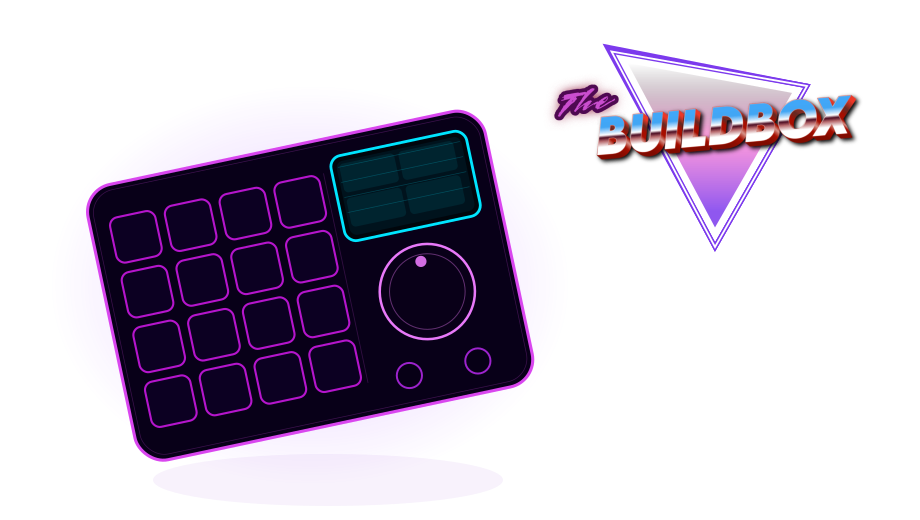
The BuildBox Macropad Puts Keyboard Shortcuts at Your Fingertips! Learn More

Footage 11 shortcuts

Import one file or image sequence
Cmd +I Ctrl +I
Import multiple files or image sequences
Opt +Cmd +I Ctrl +Alt +I
Add selected items to most recently activated composition
Cmd +/ Ctrl +/
Replace selected source footage for selected layers with footage item selected in Project panel
Opt +Cmd +/ Ctrl +Alt +/
Delete a footage item without a warning
Cmd +Delete Ctrl +Backspace
Open Interpret Footage dialog box for selected footage item
Opt +Cmd +G Ctrl +Alt +G
Remember footage interpretation
Opt +Cmd +C Ctrl +Alt +C
Edit selected footage item in application with which it’s associated (Edit Original)
Cmd +E Ctrl +E
Replace selected footage item
Cmd +H Ctrl +H
Reload selected footage items
Opt +Cmd +L Ctrl +Alt +L
Set proxy for selected footage item
Opt +Cmd +P Ctrl +Alt +P

Effects and animation presets 3 shortcuts

Delete all effects from selected layers
Shift +Cmd +E Ctrl +Shift +E
Apply most recently applied effect to selected layers
Opt +Shift +Cmd +E Ctrl +Alt +Shift +E
Apply most recently applied animation preset to selected layers
Opt +Shift +Cmd +F Ctrl +Alt +Shift +F

Rotation 3 shortcuts

Increase or decrease Rotation (Z Rotation) of selected layers by 10°
Shift ++ Shift ++
Increase or decrease Rotation (Z Rotation) of selected layers by 10°
Shift +- Shift +-
Modify Rotation or Orientation in 15° increments
Shift +Drag Shift +Drag

Opacity/Intensity 4 shortcuts

Increase or decrease Opacity (or Intensity for light layers) of selected layers by 1%
Ctrl +Opt ++ Ctrl +Alt ++
Increase or decrease Opacity (or Intensity for light layers) of selected layers by 1%
Ctrl +Opt +- Ctrl +Alt +-
Increase or decrease Opacity (or Intensity for light layers) of selected layers by 10%
Ctrl +Opt +Shift ++ Ctrl +Alt +Shift ++
Increase or decrease Opacity (or Intensity for light layers) of selected layers by 10%
Ctrl +Opt +Shift +- Ctrl +Alt +Shift +-

Scale 8 shortcuts

Increase Scale of selected layers by 1%
Cmd ++ Ctrl ++
Increase Scale of selected layers by 1%
Opt ++ Alt ++
Decrease Scale of selected layers by 1%
Cmd +- Ctrl +-
Decrease Scale of selected layers by 1%
Opt +- Alt +-
Increase Scale of selected layers by 10%
Shift +Cmd ++ Ctrl +Shift ++
Increase Scale of selected layers by 10%
Opt +Shift ++ Alt +Shift ++
Decrease Scale of selected layers by 10%
Shift +Cmd +- Ctrl +Shift +-
Decrease Scale of selected layers by 10%
Opt +Shift +- Alt +Shift +-

3D Layers 10 shortcuts

Switch to 3D view 1 (defaults to Front)
F10 F10
Switch to 3D view 2 (defaults to Custom View 1)
F11 F11
Switch to 3D view 3 (defaults to Active Camera)
F12 F12
Return to previous view
Esc Esc
New light
Opt +Shift +Cmd +L Ctrl +Alt +Shift +L
New camera
Opt +Shift +Cmd +C Ctrl +Alt +Shift +C
Move the camera and its point of interest to look at selected 3D layers
Opt +Shift +Cmd +\ Ctrl +Alt +Shift +\
With a camera tool selected, move the camera and its point of interest to look at selected 3D layers
F F
With a camera tool selected, move the camera and its point of interest to look at all 3D layers
Shift +Cmd +F Ctrl +Shift +F
Turn Casts Shadows property on or off for selected 3D layers
Opt +Shift +C Alt +Shift +C

Keyframes and Graph Editor 15 shortcuts

Toggle between Graph Editor and layer bar modes
Shift +F3 Shift +F3
Select all visible keyframes and properties
Opt +Cmd +A Ctrl +Alt +A
Deselect all keyframes, properties, and property groups
Shift +F2 Shift +F2
Deselect all keyframes, properties, and property groups
Opt +Shift +Cmd +A Ctrl +Alt +Shift +A
Move keyframe 1 frame later or earlier
Opt +Right Alt +Right
Move keyframe 1 frame later or earlier
Opt +Left Alt +Left
Move keyframe 10 frames later or earlier
Opt +Shift +Right Alt +Shift +Right
Move keyframe 10 frames later or earlier
Opt +Shift +Left Alt +Shift +Left
Set interpolation for selected keyframes (layer bar mode)
Opt +Cmd +K Ctrl +Alt +K
Set keyframe interpolation method to hold or Auto Bezier
Opt +Cmd +H Ctrl +Alt +H
Easy ease selected keyframes
F9 F9
Easy ease selected keyframes in
Shift +F9 Shift +F9
Easy ease selected keyframes out
Shift +Cmd +F9 Ctrl +Shift +F9
Set velocity for selected keyframes
Shift +Cmd +K Ctrl +Shift +K
Reverse paste the copied keyframes in the timeline
Shift +Cmd +V Ctrl +Shift +V

Text 51 shortcuts

New text layer
Opt +Shift +Cmd +T Ctrl +Alt +Shift +T
Align selected horizontal text left, center, or right / Align selected vertical text top, center, or bottom
Shift +Cmd +L Ctrl +Shift +L
Align selected horizontal text left, center, or right / Align selected vertical text top, center, or bottom
Shift +Cmd +C Ctrl +Shift +C
Align selected horizontal text left, center, or right / Align selected vertical text top, center, or bottom
Shift +Cmd +R Ctrl +Shift +R
Extend or reduce selection by one character to right or left in horizontal text
Shift +Right Shift +Right
Extend or reduce selection by one character to right or left in horizontal text
Shift +Left Shift +Left
Extend or reduce selection by one word to right or left in horizontal text
Shift +Cmd +Right Ctrl +Shift +Right
Extend or reduce selection by one word to right or left in horizontal text
Shift +Cmd +Left Ctrl +Shift +Left
Extend or reduce selection by one character up or down in vertical text
Shift +Up Shift +Up
Extend or reduce selection by one character up or down in vertical text
Shift +Down Shift +Down
Extend or reduce selection one word up or down in vertical text
Shift +Cmd +Up Ctrl +Shift +Up
Extend or reduce selection one word up or down in vertical text
Shift +Cmd +Down Ctrl +Shift +Down
Select text from insertion point to beginning or end of line
Shift +Home Shift +Home
Select text from insertion point to beginning or end of line
Shift +End Shift +End
Move insertion point to beginning or end of line
Home Home
Move insertion point to beginning or end of line
End End
Select text from insertion point to beginning or end of text frame
Shift +Cmd +Home Ctrl +Shift +Home
Select text from insertion point to beginning or end of text frame
Shift +Cmd +End Ctrl +Shift +End
In horizontal text, move insertion point one character left or right; one line up or down; one word left or right; or one paragraph up or down
Left Left
In horizontal text, move insertion point one character left or right; one line up or down; one word left or right; or one paragraph up or down
Right Right
In horizontal text, move insertion point one character left or right; one line up or down; one word left or right; or one paragraph up or down
Up Up
In horizontal text, move insertion point one character left or right; one line up or down; one word left or right; or one paragraph up or down
Down Down
In horizontal text, move insertion point one character left or right; one line up or down; one word left or right; or one paragraph up or down
Cmd +Left Ctrl +Left
In horizontal text, move insertion point one character left or right; one line up or down; one word left or right; or one paragraph up or down
Cmd +Right Ctrl +Right
In horizontal text, move insertion point one character left or right; one line up or down; one word left or right; or one paragraph up or down
Cmd +Up Ctrl +Up
In horizontal text, move insertion point one character left or right; one line up or down; one word left or right; or one paragraph up or down
Cmd +Down Ctrl +Down
Turn All Caps on or off for selected text
Shift +Cmd +K Ctrl +Shift +K
Turn Small Caps on or off for selected text
Opt +Shift +Cmd +K Ctrl +Alt +Shift +K
Turn Superscript on or off for selected text
Shift +Cmd += Ctrl +Shift +=
Turn Subscript on or off for selected text
Opt +Shift +Cmd += Ctrl +Alt +Shift +=
Set horizontal scale to 100% for selected text
Shift +Cmd +X Ctrl +Shift +X
Set vertical scale to 100% for selected text
Opt +Shift +Cmd +X Ctrl +Alt +Shift +X
Auto leading for selected text
Opt +Shift +Cmd +A Ctrl +Alt +Shift +A
Reset tracking to 0 for selected text
Ctrl +Shift +Cmd +Q Ctrl +Shift +Q
Justify paragraph; left align last line
Shift +Cmd +J Ctrl +Shift +J
Justify paragraph; right align last line
Opt +Shift +Cmd +J Ctrl +Alt +Shift +J
Justify paragraph; force last line
Shift +Cmd +F Ctrl +Shift +F
Decrease or increase font size of selected text by 2 units
Shift +Cmd +, Ctrl +Shift +,
Decrease or increase font size of selected text by 2 units
Shift +Cmd +. Ctrl +Shift +.
Decrease or increase font size of selected text by 10 units
Opt +Shift +Cmd +, Ctrl +Alt +Shift +,
Decrease or increase font size of selected text by 10 units
Opt +Shift +Cmd +. Ctrl +Alt +Shift +.
Increase or decrease leading by 2 units
Opt +Down Alt +Down
Increase or decrease leading by 2 units
Opt +Up Alt +Up
Increase or decrease leading by 10 units
Opt +Cmd +Down Ctrl +Alt +Down
Increase or decrease leading by 10 units
Opt +Cmd +Up Ctrl +Alt +Up
Decrease or increase baseline shift by 2 units
Opt +Shift +Down Alt +Shift +Down
Decrease or increase baseline shift by 2 units
Opt +Shift +Up Alt +Shift +Up
Decrease or increase baseline shift by 10 units
Opt +Shift +Cmd +Down Ctrl +Alt +Shift +Down
Decrease or increase baseline shift by 10 units
Opt +Shift +Cmd +Up Ctrl +Alt +Shift +Up
Decrease or increase kerning or tracking 20 units (20/1000 ems)
Opt +Left Alt +Left
Decrease or increase kerning or tracking 20 units (20/1000 ems)
Opt +Right Alt +Right

Markers 26 shortcuts

Set marker at current time (works during preview and audio-only preview)
Ctrl +8 Ctrl +8 Ctrl +8
Set marker at current time (works during preview and audio-only preview)
* +Space * +Space * +Space
Set marker at current time and open marker dialog box
Ctrl +Opt +8 Ctrl +Alt +8 Ctrl +Alt +8
Set marker at current time and open marker dialog box
Opt +* +Space Alt +* +Space Alt +* +Space
Set and number a composition marker (0-9) at the current time
Shift +0 Shift +0 Shift +0
Set and number a composition marker (0-9) at the current time
Shift +1 Shift +1 Shift +1
Set and number a composition marker (0-9) at the current time
Shift +2 Shift +2 Shift +2
Set and number a composition marker (0-9) at the current time
Shift +3 Shift +3 Shift +3
Set and number a composition marker (0-9) at the current time
Shift +4 Shift +4 Shift +4
Set and number a composition marker (0-9) at the current time
Shift +5 Shift +5 Shift +5
Set and number a composition marker (0-9) at the current time
Shift +6 Shift +6 Shift +6
Set and number a composition marker (0-9) at the current time
Shift +7 Shift +7 Shift +7
Set and number a composition marker (0-9) at the current time
Shift +8 Shift +8 Shift +8
Set and number a composition marker (0-9) at the current time
Shift +9 Shift +9 Shift +9
Go to a composition marker (0-9)
0 0 0
Go to a composition marker (0-9)
1 1 1
Go to a composition marker (0-9)
2 2 2
Go to a composition marker (0-9)
3 3 3
Go to a composition marker (0-9)
4 4 4
Go to a composition marker (0-9)
5 5 5
Go to a composition marker (0-9)
6 6 6
Go to a composition marker (0-9)
7 7 7
Go to a composition marker (0-9)
8 8 8
Go to a composition marker (0-9)
9 9 9
Display the duration between two layer markers or keyframes in the Info panel
Opt +Space Alt +Space Alt +Space
Remove marker
Cmd +Space Ctrl +Space Ctrl +Space

Motion Tracking 16 shortcuts

Move feature region, search region, and attach point 1 pixel at current magnification
Right Right Right
Move feature region, search region, and attach point 1 pixel at current magnification
Left Left Left
Move feature region, search region, and attach point 1 pixel at current magnification
Up Up Up
Move feature region, search region, and attach point 1 pixel at current magnification
Down Down Down
Move feature region, search region, and attach point 10 pixels at current magnification
Shift +Right Shift +Right Shift +Right
Move feature region, search region, and attach point 10 pixels at current magnification
Shift +Left Shift +Left Shift +Left
Move feature region, search region, and attach point 10 pixels at current magnification
Shift +Up Shift +Up Shift +Up
Move feature region, search region, and attach point 10 pixels at current magnification
Shift +Down Shift +Down Shift +Down
Move feature region and search region 1 pixel at current magnification
Opt +Right Alt +Right Alt +Right
Move feature region and search region 1 pixel at current magnification
Opt +Left Alt +Left Alt +Left
Move feature region and search region 1 pixel at current magnification
Opt +Up Alt +Up Alt +Up
Move feature region and search region 1 pixel at current magnification
Opt +Down Alt +Down Alt +Down
Move feature region and search region 10 pixels at current magnification
Opt +Shift +Right Alt +Shift +Right Alt +Shift +Right
Move feature region and search region 10 pixels at current magnification
Opt +Shift +Left Alt +Shift +Left Alt +Shift +Left
Move feature region and search region 10 pixels at current magnification
Opt +Shift +Up Alt +Shift +Up Alt +Shift +Up
Move feature region and search region 10 pixels at current magnification
Opt +Shift +Down Alt +Shift +Down Alt +Shift +Down

Saving, Exporting, and Rendering 7 shortcuts

Save project
Cmd +S Ctrl +S Ctrl +S
Increment and save project
Opt +Shift +Cmd +S Ctrl +Alt +Shift +S Ctrl +Alt +Shift +S
Save As
Shift +Cmd +S Ctrl +Shift +S Ctrl +Shift +S
Add active composition or selected items to render queue
Shift +Cmd +/ Ctrl +Shift +/ Ctrl +Shift +/
Add current frame to render queue
Opt +Cmd +Space Ctrl +Alt +S Ctrl +Alt +S
Duplicate render item with same output filename as original
Shift +Cmd +D Ctrl +Shift +D Ctrl +Shift +D
Add a composition to the Adobe Media Encoder encoding queue
Opt +Cmd +Space Ctrl +Alt +M Ctrl +Alt +M
BuildBox Macropad

We've Built 10s Of 1000s Of Keyboard Shortcuts Into The BuildBox Macropad

The BuildBox Macropad is the ultimate shortcut machine. One device with up to 160 configurable shortcuts for apps like Adobe After Effects available at your fingertips, a crystal clear display showing what every key does, and a hall-effect scroll wheel for scrubbing through video, audio and graphic editing applications like butter!

Drop your email below to be eligible for our first production run of 500 BuildBox units, at a HUGE discount price:

Keyboard Shortcuts for Similar Applications