Video Production

DaVinci Resolve Keyboard Shortcuts

Every one of DaVinci Resolve's 204 keyboard shortcuts, collected so you can edit and color grade videos faster

DaVinci Resolve keyboard shortcuts

From Blackmagic Design, DaVinci Resolve is purpose-built to edit and color grade videos. It is one of the leading applications in the video production category.

Speed matters when you use DaVinci Resolve professionally. Keyboard shortcuts eliminate unnecessary clicks and keep your hands on the keys where they belong.

macOS Windows Linux
204 shortcuts 57 categories
Visit DaVinci Resolve Official Website
Show shortcuts for:

Application 1 shortcut

Quit DaVinci Resolve
Cmd +Q Ctrl +Q N/A

Timeline 10 shortcuts

Toggle audio scrubbing on and off
Shift +S Shift +S Shift +S
Toggle Linked Selection in the timeline
Shift +Cmd +L Ctrl +Shift +L Ctrl +Shift +L
Toggle Trim Edit Mode
T T T
Toggle Snapping
N N N
Place on Top edit
F12 F12 F12
Append at End edit
Shift +F12 Shift +F12 Shift +F12
Add an edit (Razor)
Cmd +B Ctrl +B Ctrl +B
Replace Clip
F11 F11 F11
Stop recording
Esc Esc Esc
Add marker
M M M

Selection 3 shortcuts

Command-click to select multiple bins (macOS) / Command-click to select multiple items on macOS
Cmd N/A N/A
Ctrl-click to select multiple bins (Windows) / Ctrl-click to select multiple items on Windows
N/A Ctrl Ctrl
Deselect all
Shift +Cmd +A Ctrl +Shift +A Ctrl +Shift +A

File Operations 4 shortcuts

Create a new bin
Shift +Cmd +N Ctrl +Shift +N Ctrl +Shift +N
Create a new timeline
Cmd +N Ctrl +N Ctrl +N
Import timeline
Shift +Cmd +I Ctrl +Shift +I Ctrl +Shift +I
Open File menu and Project Settings
Shift +Cmd +9 Ctrl +Shift +9 Ctrl +Shift +9

Marking and In/Out Points 2 shortcuts

Mark In point
I I I
Mark Out point
O O O

Playback Control 8 shortcuts

Play forward / Forward playback
L L L
Play backward / Alternate playback control
J J J
Reverse playback or stop playback
K K K
Start/stop playback / Play/pause
Space Space Space
Move playhead back to start of clip
Home Home Home
Jog forward one frame (hold K and tap L) / Scrub forward (hold K and hold L)
K +L K +L K +L
Jog backward one frame (hold K and tap J) / Scrub backward (hold K and hold J)
K +J K +J K +J
Play in to out
Opt +/ Alt +/ Alt +/

Navigation 12 shortcuts

Move playhead forward one frame
Right Right Right
Move playhead backward one frame
Left Left Left
Move to previous clip in media pool / Jump back to start of clip
Up Up Up
Move to next clip in media pool
Down Down Down
Switch between timeline and source viewers / Switch to timeline / Switch to source viewer
Q Q Q
Return playhead to start of timeline
Home Home Home
Return playhead to start of timeline on laptop
Fn +Left N/A N/A
Match Frame - open clip from timeline in source viewer
F F F
Switch to Edit page
Shift +2 Shift +2 Shift +2
Switch to the Deliver page
Shift +8 Shift +8 Shift +8
Open the Project Manager
Shift +1 Shift +1 Shift +1
Open Project Settings
Shift +9 Shift +9 Shift +9

Audio 1 shortcut

Enable audio scrubbing
Shift +S Shift +S Shift +S

Timeline Zoom and Scroll 6 shortcuts

Zoom in to playhead position
Cmd += Ctrl += Ctrl +=
Zoom out from playhead position
Cmd +- Ctrl +- Ctrl +-
Toggle between fit to window and previous zoom level
Shift +Z Shift +Z Shift +Z
Adjust zoom dynamically (hold Alt/Ctrl and scroll)
Opt +Scroll Alt +Scroll Alt +Scroll
Adjust track heights (hold Shift and scroll)
Shift +Scroll Shift +Scroll Shift +Scroll
Scroll timeline left and right (hold Cmd/Ctrl and scroll)
Cmd +Scroll Ctrl +Scroll Ctrl +Scroll

Editing Operations 10 shortcuts

Overwrite Clip
F10 F10 N/A
Insert Clip
F9 F9 N/A
Append to End of Timeline
Shift +F12 Shift +F12 N/A
Swap Clips Towards Left
Shift +Cmd +, Ctrl +Shift +, N/A
Swap Clips Towards Right
Shift +Cmd +. Ctrl +Shift +. N/A
Place on Top edit
F12 F12 F12
Disable destination control A1 (macOS)
Opt +Cmd +1 N/A N/A
Disable destination control A1 (Windows/Linux)
N/A Ctrl +Alt +1 Ctrl +Alt +1
Remove In point in source viewer (macOS)
Opt +I N/A N/A
Remove In point in source viewer (Windows/Linux)
N/A Alt +I Alt +I

Timeline Navigation 16 shortcuts

Move playhead to next edit in timeline / Navigate to next clip in source tape / Jump to start of clip using arrow keys
Down Down Down
Move playhead to start of timeline
Home Home Home
Jump to last frame of current clip
' ' '
Switch to source viewer / Switch to timeline
Q Q Q
Navigate to previous clip in source tape
Up Up Up
Set In point
I I I
Set Out point
O O O
Ripple delete marked section
Shift +Backspace Shift +Delete Shift +Delete
Preview the edit
/ / /
Insert clip
F9 F9 F9
Play/control using JKL keys
J +K +L J +K +L J +K +L
Mark selection with in and out points
Shift +A Shift +A Shift +A
Change audio destination to track 3
Opt +Cmd +3 Ctrl +Alt +3 Ctrl +Alt +3
Change audio destination to track 4
Opt +Cmd +4 Ctrl +Alt +4 N/A
Change audio destination to track 5
Opt +Cmd +5 Ctrl +Alt +5 Ctrl +Alt +5
Change audio destination to track 6
Opt +Cmd +6 Ctrl +Alt +6 Ctrl +Alt +6

Timeline Selection 2 shortcuts

Select clips forward on targeted track
Y Y Y
Select clips forward on all tracks
Opt +Y Alt +Y Alt +Y

Timeline Marking 7 shortcuts

Add In point
I I I
Add Out point
O O O
Jump to implied Out point (source viewer)
Shift +O Shift +O Shift +O
Jump to In point (source viewer)
Shift +I Shift +I Shift +I
Clear In point
Opt +I Alt +I Alt +I
Clear Out point
Opt +O Alt +O Alt +O
Clear In and Out points
Opt +X Alt +X Alt +X

Timeline Editing 9 shortcuts

Place on Top edit
F12 F12 F12
Set in point
I I I
Set out point
O O O
Create new subclip
Opt +B Alt +B Alt +B
Append edit
Shift +F12 Shift +F12 Shift +F12
Enable Trim Edit mode for the timeline
T T T
Ripple delete the portion between In and Out points
Delete Delete Delete
Enable Audio Scrubbing
Shift +S Shift +S Shift +S
Disable Snapping
N N N

Timeline Functions 1 shortcut

Enable/disable timeline snapping
N N N

Edit 6 shortcuts

Undo last action
Cmd +Z Ctrl +Z Ctrl +Z
Place on Top edit
F12 F12 F12
Copy clip
Cmd +C Ctrl +C Ctrl +C
Paste
Cmd +V Ctrl +V Ctrl +V
Ripple Overwrite
Shift +F10 Shift +F10 Shift +F10
Paste attributes
Opt +V Alt +V Alt +V

View 3 shortcuts

Switch to media page
Shift +2 Shift +2 Shift +2
Fit entire shot in timeline viewer
Z Z Z
Toggle viewer overlay on/off
Shift +` Shift +` Shift +`
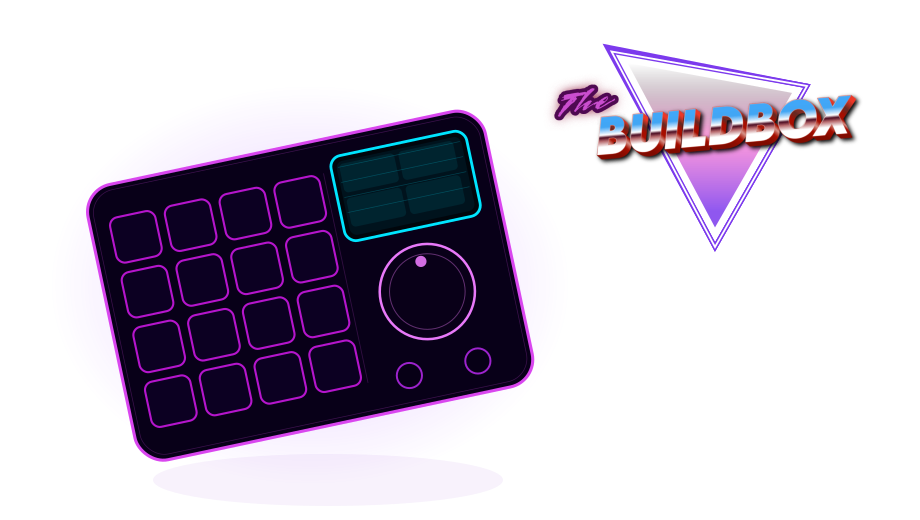
The BuildBox Macropad Puts Keyboard Shortcuts at Your Fingertips! Learn More

Playback 3 shortcuts

Go to last frame of clip
' ' '
Play around current selection / Review edit / Play Around/To - Play Around Current Selection / Preview audio in timeline
/ / /
Play/Pause (in Dynamic Trim mode)
Space Space Space

Preferences 1 shortcut

Open Preferences
Cmd +, Ctrl +, Ctrl +,

Editing Modes 3 shortcuts

Enable Blade Edit mode
B B B
Return to Selection mode
A A A
Disable snapping
N N N

Track Destination 1 shortcut

Toggle Audio 1 destination control
Opt +Cmd +1 Ctrl +Alt +1 Ctrl +Alt +1

Full-Screen Playback 6 shortcuts

Enter Cinema Viewer full-screen mode
Cmd +F Ctrl +F Ctrl +F
Exit full-screen mode
Esc Esc Esc
Return to start of timeline
Home Home Home
Rewind playback
J J J
Pause playback
K K K
Play forward
L L L

Dynamic Zoom 2 shortcuts

Review dynamic zoom changes in timeline
/ / /
Toggle viewer overlays on/off
Shift +` Shift +` Shift +`

Markers 1 shortcut

Open marker comments
M M M

Editing 11 shortcuts

Extend Edit
E E E
Enable Trim Edit mode
T T T
Switch selected edit from roll to incoming ripple trim
U U U
Trim incoming shot backward
, , ,
Trim selected edit to the right
. . .
Dynamic Trim Mode
W W W
Trim selected edit backward (in Dynamic Trim mode, hold K then press J)
K +J K +J K +J
Trim selected edit forward (in Dynamic Trim mode, hold K then press L)
K +L K +L K +L
Slip or slide clip (in Dynamic Trim mode, select clip and start trimming with JKL)
S S S
Fit to Fill edit
Shift +F11 Shift +F11 Shift +F11
Show Keyframe Editor for selected clip
Shift +Cmd +C Ctrl +Shift +C Ctrl +Shift +C

Clip Editing 3 shortcuts

Add edit at playhead position
Cmd +B Ctrl +B Ctrl +B
Extend edit
E E E
Move clip up to create new track
Opt +Up Alt +Up Alt +Up

Selection and Mode 2 shortcuts

Switch to Selection mode
A A A
Toggle Linked Selection
Shift +Cmd +L Ctrl +Shift +L Ctrl +Shift +L

Project Management 1 shortcut

Open Project Manager
Shift +1 Shift +1 Shift +1

Multicam Editing 4 shortcuts

Cut to angle number (1-9) in multicam viewer
1 1 1
Hold Option/Alt and press number key to switch angle at playhead position
Opt Alt Alt
Remove unwanted edit point
Delete Backspace Backspace
Re-enable Linked Selection
Shift +Cmd +L Ctrl +Shift +L Ctrl +Shift +L

Navigation and Workspace 3 shortcuts

Switch to Media page
Shift +2 Shift +2 Shift +2
Switch to Edit page
Shift +4 Shift +4 Shift +4
Open Project Settings
Shift +9 Shift +9 Shift +9

Playback and Media Control 3 shortcuts

Play clip forward
Space Space Space
Toggle audio scrubbing
Shift +S Shift +S Shift +S
Control playback using JKL shortcuts
J +K +L J +K +L J +K +L

Audio and Metadata Navigation 3 shortcuts

Toggle audio scrubbing
Shift +S Shift +S Shift +S
Multi-select bins (hold while clicking)
Shift Shift Shift
Deselect bin
Cmd Ctrl Ctrl

Preferences and Settings 1 shortcut

Open Preferences window
Cmd +, Ctrl +, Ctrl +,

Favorite Keywords 10 shortcuts

Apply favorite keyword 1
Opt +Shift +1 Alt +Shift +1 Alt +Shift +1
Apply favorite keyword 2
Opt +Shift +2 Alt +Shift +2 Alt +Shift +2
Apply favorite keyword 3
Opt +Shift +3 Alt +Shift +3 Alt +Shift +3
Apply favorite keyword 4
Opt +Shift +4 Alt +Shift +4 Alt +Shift +4
Apply favorite keyword 5
Opt +Shift +5 Alt +Shift +5 Alt +Shift +5
Apply favorite keyword 6
Opt +Shift +6 Alt +Shift +6 Alt +Shift +6
Apply favorite keyword 7
Opt +Shift +7 Alt +Shift +7 Alt +Shift +7
Apply favorite keyword 8
Opt +Shift +8 Alt +Shift +8 Alt +Shift +8
Apply favorite keyword 9
Opt +Shift +9 Alt +Shift +9 Alt +Shift +9
Remove all keywords from selected clip(s)
Opt +Shift +0 Alt +Shift +0 Alt +Shift +0

Media Pool 5 shortcuts

Select all clips in the media pool
Cmd +A Ctrl +A Ctrl +A
Add a new power bin
Shift +Cmd +N Ctrl +Shift +N Ctrl +Shift +N
Multi-select clips in media pool (macOS)
Cmd N/A N/A
Multi-select clips in media pool (Windows/Linux)
N/A Ctrl Ctrl
Open selected timeline in source viewer
Enter Enter Enter

Subclips 1 shortcut

Create subclip
Opt +B Alt +B Alt +B

Smart Bins 1 shortcut

Add new subset of Any/All rules to smart bin
Opt +Click Add Criteria button Alt +Click Add Criteria button Alt +Click Add Criteria button

Page Navigation 2 shortcuts

Switch to edit page / Return to Edit page
Shift +4 Shift +4 Shift +4
Switch to Deliver page
Shift +8 Shift +8 Shift +8

Clip Navigation 3 shortcuts

Play forward (JKL editing)
L L L
Play backward (JKL editing)
J J J
Pause (JKL editing)
K K K

Clip Selection and Management 4 shortcuts

Disable clip in the timeline
D D D
Select clip above (macOS) or move selection up
Cmd +Up N/A N/A
Select clip above (Windows)
N/A Ctrl +Up N/A
Remove selected clips
Shift +Backspace Shift +Backspace Shift +Backspace

AI Music Editor 2 shortcuts

Re-enable destination control A1 (macOS)
Opt +Cmd +1 N/A N/A
Re-enable destination control A1 (Windows/Linux)
N/A Ctrl +Alt +1 Ctrl +Alt +1

Marking and Selection 1 shortcut

Mark selection duration
Shift +A Shift +A Shift +A

Track Targeting 1 shortcut

Target V5 track (or track 5)
Opt +5 Alt +5 N/A

Track Navigation 1 shortcut

Move clip up one track
Opt +Up Alt +Up N/A

Copy and Paste 2 shortcuts

Copy
Cmd +C Ctrl +C Ctrl +C
Paste Attributes
Opt +V Alt +V N/A

Viewer Overlays 1 shortcut

Toggle viewer overlays on/off
Shift +` Shift +` Shift +`

Render Cache 1 shortcut

Cycle between render caching options
Opt +R Alt +R N/A

Clip Operations 1 shortcut

Freeze frame
Shift +R Shift +R Shift +R

Retime Controls 1 shortcut

Display retime controls for selected clip
Cmd +R Ctrl +R Ctrl +R

Speed Points 1 shortcut

Add speed point at playhead location
Cmd +[ Ctrl +[ Ctrl +[

Edit Mode 1 shortcut

Enable Trim Edit mode
T T T

Clip Management 2 shortcuts

Disable or enable clip in timeline
D D D
Link clips together
Opt +Cmd +L Ctrl +Alt +L Ctrl +Alt +L

Editing and Trimming 5 shortcuts

Split clip at playhead position
Cmd +B Ctrl +B Ctrl +B
Enable trim edit mode
T T T
Enable selection mode
A A A
Trim end of clip to playhead
Shift +] Shift +] Shift +]
Trim start of clip to playhead
Shift +[ Shift +[ Shift +[

File 1 shortcut

Open Project Settings
Shift +9 Shift +9 Shift +9

Audio Editing 5 shortcuts

Increase Audio Level 3dB
Opt +Shift += Alt +Shift += N/A
Increase Audio Level by 1dB
Opt +Cmd += Ctrl +Alt += N/A
Play timeline
/ / /
Add keyframe to gain line (macOS)
Opt N/A N/A
Add keyframe to gain line (Windows)
N/A Alt N/A

General 2 shortcuts

Close dialog or cancel action
Esc Esc Esc
Confirm action (Return/Enter)
Enter Enter Enter

View and Display 1 shortcut

Enable Transform viewer overlay controls
Shift +` Shift +` Shift +`
BuildBox Macropad

We've Built 10s Of 1000s Of Keyboard Shortcuts Into The BuildBox Macropad

The BuildBox Macropad is the ultimate shortcut machine. One device with up to 160 configurable shortcuts for apps like DaVinci Resolve available at your fingertips, a crystal clear display showing what every key does, and a hall-effect scroll wheel for scrubbing through video, audio and graphic editing applications like butter!

Drop your email below to be eligible for our first production run of 500 BuildBox units, at a HUGE discount price:

Keyboard Shortcuts for Similar Applications