Video Production

ScreenFlow Keyboard Shortcuts

We collected 79 keyboard shortcuts for ScreenFlow so you can record and edit screencasts faster

ScreenFlow keyboard shortcuts

From Telestream, ScreenFlow is purpose-built to record and edit screencasts. It is one of the leading applications in the video production category.

Efficient ScreenFlow workflows rely heavily on keyboard shortcuts. Every second saved on navigation adds up over the course of a project.

ScreenFlow is a macOS-exclusive tool, and its keyboard shortcuts are designed with that platform's conventions in mind.

macOS
79 shortcuts 4 categories
Visit ScreenFlow Official Website

Editing (In Preview Area) 11 shortcuts

Temporarily toggle snapping
Cmd
Set Preview area to natural size
Opt +Cmd +0
Zoom in Preview area
Cmd +=
Zoom out Preview area
Cmd +-
Paste style
Opt +Cmd +V
Paste and match style
Opt +Shift +Cmd +V
Nudge item on canvas
Left
Nudge item on canvas
Right
Nudge item on canvas
Up
Nudge item on canvas
Down
Toggle snapping to guide lines
Ctrl +N

Editing (In Timeline Area) 53 shortcuts

Play presentation
Space
Scrub backwards, stop, forward
J
Scrub backwards, stop, forward
K
Scrub backwards, stop, forward
L
Fast backwards
J +J
Fast forward
L +L
Move scrubber to previous clip start/end
;
Move scrubber to next clip start/end
'
Insert Marker at scrubber position
`
Delete Marker at scrubber position
Shift +`
Next Marker
Shift +Up
Previous Marker
Shift +Down
Trim front of selected clip(s) to the scrubber position
W
Trim end of selected clip(s) to the scrubber position
E
Insert In Point
I
Insert Out Point
O
Clear in and out Points
Opt +Z
Move scrubber to in point
Shift +I
Move scrubber to out point
Shift +O
Ripple delete between current In/Out Points
Cmd +Backspace
Select all clips
Cmd +A
Deselect all clips
Shift +Cmd +A
Forward one frame
Right
Backward one frame
Left
Forward one second
Shift +Right
Backward one second
Shift +Left
Nudge clip on timeline
]
Nudge clip on timeline
[
Move scrubber to start of presentation
Home
Move scrubber to start of presentation
Fn +Left
Move scrubber to end of presentation
End
Move scrubber to end of presentation
Fn +Right
Resize timeline to fit visible area
Shift +Z
Resize timeline to fit visible area
Ctrl +T
Toggle live audio scrubbing
Shift +S
Zoom in timeline
=
Zoom out timeline
-
Add video action
Cmd +K
Add callout
Cmd +L
Add screen recording action
Cmd +R
Insert Annotations clip
Opt +Cmd +T
Split clip (keep clip on left selected)
T
Split clip (keep clip on right selected)
Shift +T
Add freeze frame
Shift +Cmd +F
Lock/unlock clip / Lock Clips
Opt +Cmd +L
Group clips
Cmd +G
Ungroup clips
Cmd +U
Paste audio properties
Opt +Cmd +A
Paste callout properties
Opt +Cmd +C
Paste video properties
Opt +Cmd +I
Paste screen recording properties
Opt +Cmd +S
Insert media at scrubber position
Shift +Cmd +V
Nest Clips
Opt +Cmd +N
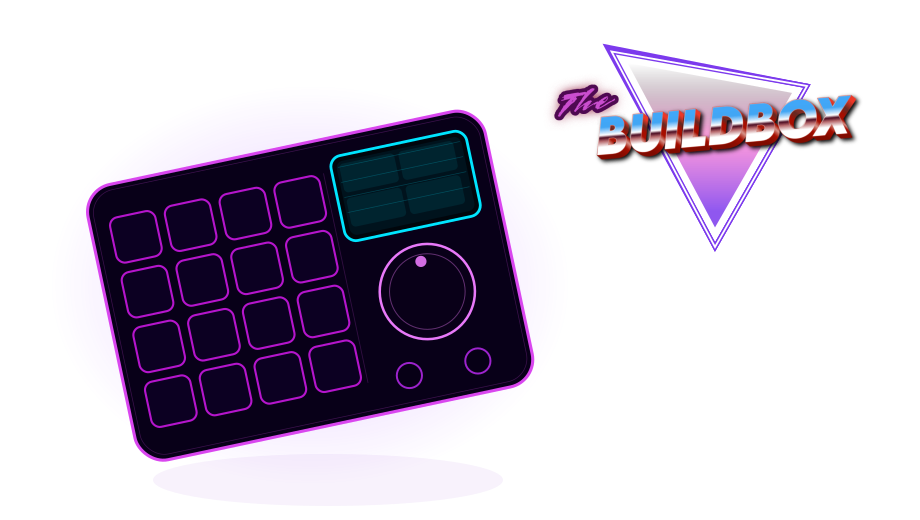
The BuildBox Macropad Puts Keyboard Shortcuts at Your Fingertips! Learn More

Record & Export 8 shortcuts

Record
Shift +Cmd +2
New recording
Cmd +N
Open recording document
Cmd +O
Add additional recording to current document
Shift +Cmd +R
Hide ScreenFlow windows
Cmd +H
Hide other windows
Opt +Cmd +H
Export as video
Cmd +E
Open help window
Shift +Cmd +/

Other 7 shortcuts

Show Video Properties
Cmd +1
Show Audio Properties
Cmd +2
Show Screen Recording Properties
Cmd +3
Show Callout Properties
Cmd +4
Show Annotations Properties
Cmd +5
Show Text Properties
Cmd +6
Show Media
Cmd +7
BuildBox Macropad

We've Built 10s Of 1000s Of Keyboard Shortcuts Into The BuildBox Macropad

The BuildBox Macropad is the ultimate shortcut machine. One device with up to 160 configurable shortcuts for apps like ScreenFlow available at your fingertips, a crystal clear display showing what every key does, and a hall-effect scroll wheel for scrubbing through video, audio and graphic editing applications like butter!

Drop your email below to be eligible for our first production run of 500 BuildBox units, at a HUGE discount price:

Keyboard Shortcuts for Similar Applications