Video Production

Avid Media Composer Keyboard Shortcuts

We collected 104 keyboard shortcuts for Avid Media Composer so you can edit broadcast media faster

Avid Media Composer keyboard shortcuts

Built by Avid, Avid Media Composer provides a full-featured environment to edit broadcast media. It is a staple in the video production space.

For Avid Media Composer users, mastering keyboard shortcuts is one of the fastest ways to boost productivity. Quick access to tools and commands keeps the creative flow unbroken.

Available on macOS and Windows, Avid Media Composer serves a broad audience of professionals who benefit from learning platform-specific shortcut keys.

macOS Windows
104 shortcuts 13 categories
Visit Avid Media Composer Official Website
Show shortcuts for:

Audio 6 shortcuts

Snaps to Mid in Audio Mix tool
Opt +Click +Pan slider Alt +Click +Pan slider
Snaps to 0 dB in Audio EQ and Audio tools
Opt +Click +Volume slider Alt +Click +Volume slider
Selects track for audio scrub monitoring
Opt +Click +Audio Track Monitor button Alt +Click +Audio Track Monitor button
Mutes selected track (1 to 8)
Opt +Click +Track Solo button +or ++ +number (1 to 8) at top +of keyboard Alt +Click +Track Solo button +or ++ +number (1 to 8) at top +of keyboard
Moves selected audio keyframe horizontally in Timeline
Opt ++ +drag keyframe Alt ++ +drag keyframe
Opens Audio Settings dialog box
Opt ++ +Click +digital +scrub +parameters +in +Composer +monitor Alt ++ +Click +digital +scrub +parameters +in +Composer +monitor

Bin 13 shortcuts

Creates a new bin
Cmd ++ +N Ctrl ++ +N Ctrl ++ +N
Selects all items in the active bin or the Project Window, if selected
Cmd ++ +A Ctrl ++ +A Ctrl ++ +A
Closes open windows, bins or dialog boxes
Cmd ++ +W Ctrl ++ +W Ctrl ++ +W
Prints the selected bin in whatever view you have selected (Text, Frame or Script View)
Cmd ++ +P Ctrl ++ +P Ctrl ++ +P
Duplicates selected clip(s), sequence(s), or title(s)
Cmd ++ +D Ctrl ++ +D Ctrl ++ +D
Creates a Group Clip from selected Master Clips or Sub Clips
Shift +Cmd ++ ++ +G Ctrl +Shift ++ ++ +G Ctrl +Shift ++ ++ +G
First, select clips or sequences in the bin, then use this shortcut to open the Console window, which will display useful information
Cmd ++ +I Ctrl ++ +I Ctrl ++ +I
Hold down these shortcut keys, then click on the Clip Menu. By holding down these keys, you have changed the Relink selection to Unlink
Shift +Cmd ++ ++ +Click +Clip Menu Ctrl +Shift ++ ++ +Click +Clip Menu Ctrl +Shift ++ ++ +Click +Clip Menu
Makes a copy of the clip.
Opt ++ +drag clips between bins Alt ++ +drag clips between bins
Using the shortcut, click on the Clip (the icon in Text View or the frame image in Frame View or Script View) or the Sequence Icon. This will create a pop-up window of information about the selected item.
Cmd ++ +Click +Clip (the icon in Text View or the frame image in Frame View or Script View) or the Sequence Icon. Ctrl +Alt ++ ++ +Click +Clip (the icon in Text View or the frame image in Frame View or Script View) or the Sequence Icon. Ctrl +Alt ++ ++ +Click +Clip (the icon in Text View or the frame image in Frame View or Script View) or the Sequence Icon.
When in Frame View or Script View, this shortcut will increase the size of the Clip Frame images.
Cmd ++ +L Ctrl ++ +L Ctrl ++ +L
When in Frame View or Script View, this shortcut will decrease the size of the Clip Frame images.
Cmd ++ +K Ctrl ++ +K Ctrl ++ +K
When in Frame View, this shortcut will make the Clip Frame images align to an invisible grid. A good way to remember this shortcut is to think that "T" stands for "Tidy-up."
Cmd ++ +T Ctrl ++ +T Ctrl ++ +T

Capturing 12 shortcuts

While capturing (but not Batch Capturing), pressing F1 will mark the In-Point of a subclip. If you press F1 at a later time (before pressing the F2 key) the in-Point will be updated.
F1 F1 F1
While capturing (but not Batch Capturing), pressing F2 will mark the Out-Point of a subclip.
F2 F2 F2
Adds a Red locator to the clip
F3 F3 F3
When in Capture Mode, F4 begins the capture. / When in Log Mode, F4 logs a Master Clip to the bin.
F4 F4 F4
Adds a Red locator to the clip
F5 F5 F5
Adds a Green locator to the clip
F6 F6 F6
Adds a Blue locator to the clip
F7 F7 F7
Adds a Cyan locator to the clip
F8 F8 F8
Adds a Magenta locator to the clip
F9 F9 F9
Adds a Yellow locator to the clip
F10 F10 F10
Adds a Black locator to the clip
F11 F11 F11
Adds a White locator to the clip
F12 F12 F12

Editing 13 shortcuts

Performs an Undo of a previous editing operation such as Mark In or Splice.
Cmd ++ +Z Ctrl ++ +Z Ctrl ++ +Z
Performs an Redo of a previous editing operation such as Mark In or Splice.
Cmd ++ +R Ctrl ++ +R Ctrl ++ +R
Copies the material between a Mark In and Mark Out on the selected tracks.
Cmd ++ +C Ctrl ++ +C Ctrl ++ +C
Pastes copied material onto the same tracks from which it was copied, at the point at which you Mark In.
Cmd ++ +V Ctrl ++ +V Ctrl ++ +V
Copies the material between a Mark In and Mark Out on the selected tracks, and places it not just into the Clipboard, but into the Source Window. This makes it very quick an easy to copy material and then be able to edit it onto *any* appropriate track in your sequence.
Opt ++ Alt ++
Opens the selected item(s) in a pop-up monitor.
Opt ++ +DoubleClick +on +A +Clip, +Sequence, +or +Title +icon +in +A +bin Alt ++ +DoubleClick +on +A +Clip, +Sequence, +or +Title +icon +in +A +bin
Changes the cursor/pointer to a hand-icon. You can now drag a subclip or a subsequence to a bin.
Opt ++ +Click +on +either +the +Source +Monitor +or +Record +Monitor Alt ++ +Click +on +either +the +Source +Monitor +or +Record +Monitor
The clip(s) will be Spliced into your Sequence at the Mark In position.
Opt ++ +Drag +A +clip +(or +multiple +clips) +into +the +Record +monitor Alt ++ +Drag +A +clip +(or +multiple +clips) +into +the +Record +monitor
The clip(s) will be Overwritten into your Sequence at the Mark In position.
Shift ++ +Drag +A +clip +(or +multiple +clips) +into +the +Record +monitor Shift ++ +Drag +A +clip +(or +multiple +clips) +into +the +Record +monitor Shift ++ +Drag +A +clip +(or +multiple +clips) +into +the +Record +monitor
With either the Source Monitor or the Record Monitor selected, use this shortcut to enlarge the image. With the Timeline active, use this shortcut to enlarge the track width for selected tracks.
Cmd ++ +L Ctrl ++ +L Ctrl ++ +L
With either the Source Monitor or the Record Monitor selected, use this shortcut to reduce the image. With the Timeline active, use this shortcut to reduce the track width for selected tracks.
Cmd ++ +K Ctrl ++ +K Ctrl ++ +K
Toggles between making the Source and Record monitors active.
Esc Esc Esc
Sends selected window back to its default location.
Cmd ++ +' Ctrl ++ +' Ctrl ++ +'

Effect Mode 13 shortcuts

Moves from one active slider to next.
Tab +(in Effect Editor) Tab +(in Effect Editor) Tab +(in Effect Editor)
Moves 10 units on a slider instead of 1 unit.
Shift ++ +Left +or +Right Shift ++ +Left +or +Right Shift ++ +Left +or +Right
Displays the image as you move it, rather than displaying just a wire frame outline.
Opt ++ +Drag +corner, +side, +or +center +of +wire +frame Alt ++ +Drag +corner, +side, +or +center +of +wire +frame
Grab an active keyframe in the Keyframe Position Bar and move it earlier or later in time. Be sure you get the "hand icon" before you attempt to move a keyframe.
Opt ++ +Drag +keyframe Alt ++ +Drag +keyframe
With the Keyframe Position Bar active, this will select all the keyframes.
Cmd ++ +A Ctrl ++ +A Ctrl ++ +A
Removes an effect.
Select segment + +Delete key Select segment + +Delete key Select segment + +Delete key
This allows you to add an effect to a segment that already has an effect on it, creating a "Nest." This also allows you to place one effect over multiple segments that are selected. Using Alt/Opt + Double-click is what Avid calls "Auto Nesting."
Opt +Select a segment, +and +then ++ +DoubleClick +an +Effect +in +the +Effect +Palette +or +an +Effect +Template +in +A +bin. Alt +Select a segment, +and +then ++ +DoubleClick +an +Effect +in +the +Effect +Palette +or +an +Effect +Template +in +A +bin.
Changes the Arrow/cursor pointer to the Hand pointer for moving an enlarged video image around in the Record Monitor. This is also useful for moving the working area around when using the Advanced Keyframe features or when using the Speed and Position Graphs in the Timewarp Motion Effect Editor Window.
Opt +Cmd ++ ++ +Click +and +Drag +video +image +(with +image +zoomed +in) Ctrl +Alt ++ ++ +Click +and +Drag +video +image +(with +image +zoomed +in)
Renders to the last drive selected, without bringing up the render dialog box.
Opt ++ Alt ++
Displays the percentage of the render that is complete.
Press P while +rendering Press P while +rendering Press P while +rendering
Displays render time completed and an estimated total render time.
Press T while rendering Press T while rendering Press T while rendering
Stops the render process and displays a dialog box asking if you would like to keep the already rendered portion or not. Keeping the rendered portion means that the next time you render that effect it will pick up where you left off.
Cmd ++ +. Ctrl ++ +. Ctrl ++ +.
This will quickly take you out of Effect Mode and return you to Source/Record Mode. Note: this shortcut does not work in Avid Xpress Pro.
Click anywhere in the Timecode track Click anywhere in the Timecode track Click anywhere in the Timecode track
The BuildBox Macropad Puts Keyboard Shortcuts at Your Fingertips! Learn More

Playing & Marking 10 shortcuts

Steps forward or backward 10 frames.
Opt ++ +Left +or +Right +or ++ +Left +or +Right Alt ++ +Left +or +Right +or ++ +Left +or +Right
Steps forward or backward 1 field.
Opt ++ +, +or +. +or ++ +, +or +. Alt ++ +, +or +. +or ++ +, +or +.
In the Position Bar (underneath the Source and Record monitors), you can grab the marks with the “hand icon” and move them earlier or later. NOTE: this works only one mark at a time.
Opt ++ +Click +marks +in +the +position +bar. +or ++ +Click +marks +in +the +position +bar. Alt ++ +Click +marks +in +the +position +bar. +or ++ +Click +marks +in +the +position +bar.
Marks an In or an Out.
Opt ++ +I +or +O +or ++ +I +or +O Alt ++ +I +or +O +or ++ +I +or +O
Goes to Mark In or Mark Out
Opt +Shift ++ ++ +I +or +O +or ++ ++ +I +or +O Alt +Shift ++ ++ +I +or +O +or ++ ++ +I +or +O
Mark an In and an Out and use this shortcut to loop the playback until stopping it.
Opt +Shift ++ ++ +L +or ++ ++ +L Alt +Shift ++ ++ +L +or ++ ++ +L
Press either of these keys multiple times and you will speed up, much like shifting gears. The speeds are as follows: 1st press = 30fps 2nd press = 60fps 3rd press = 90fps 4th press = 150fps 5th press = 240fps NOTE: use the key to stop the playback at any time. NOTE: This shortcut also works when in Trim Mode.
L +key +multiple +times +for +play +forward +or +J +key +multiple +times +for +play +reverse +or +K +key +to +Pause L +key +multiple +times +for +play +forward +or +J +key +multiple +times +for +play +reverse +or +K +key +to +Pause L +key +multiple +times +for +play +forward +or +J +key +multiple +times +for +play +reverse +or +K +key +to +Pause
While speeding along, using the shortcut directly above this one, use Opt/Alt + Play Forward or Play Reverse to "down shift" or "up shift" the speed without having to come to a complete stop as when using the Pause key.
Opt ++ +J +or +L +or ++ +J +or +L Alt ++ +J +or +L +or ++ +J +or +L
This will scrub the audio forward or reverse at just 8fps. NOTE: This shortcut also works when in Trim Mode.
Opt +Shift ++ ++ +J +or +L +or ++ ++ +J +or +L Alt +Shift ++ ++ +J +or +L +or ++ ++ +J +or +L
This will scrub the audio forward or reverse just one frame at a time. NOTE: This shortcut also works when in Trim Mode.
Opt +Shift ++ ++ +, +or +. +or ++ ++ +, +or +. Alt +Shift ++ ++ +, +or +. +or ++ ++ +, +or +.

Timeline Navigation 7 shortcuts

Snaps the blue position indicator to the "head frame" of a segment, Mark In points, or next audio keyframe
Cmd +Click Ctrl +Click
Snaps the blue position indicator to the "tail frame" of a segment, Mark In points, or next audio keyframe
Opt +Click Ctrl +Alt +Click
Shows more or less detail in the Timeline.
[ Ctrl +[ Ctrl +[
Shows more or less detail in the Timeline.
] Ctrl +] Ctrl +]
Displays the entire Sequence in the Timeline Window.
/ Ctrl +/ Ctrl +/
Allows the editor to select an area of the timeline to "zoom" into.
M Ctrl +M Ctrl +M
Return to the previously used timeline magnification.
J Ctrl +J Ctrl +J

Track Management 8 shortcuts

Increases the height of selected track(s).
L Ctrl +L Ctrl +L
Decreases the height of selected track(s).
K Ctrl +K Ctrl +K
Adds a new video track.
Y Ctrl +Y Ctrl +Y
Adds a new audio track.
U Ctrl +U Ctrl +U
Opens a dialog box which allows you to add a specifically numbered audio or video track.
Opt +Y Ctrl +Alt +Y
Opens a dialog box which allows you to add a specifically numbered audio or video track.
Opt +U Ctrl +Alt +U
Selects all tracks
A Ctrl +A Ctrl +A
De-selects all tracks
Shift +A Ctrl +Shift +A Ctrl +Shift +A

Selection 3 shortcuts

Allows you to select multiple segments.
Shift +Click Shift +Click
Snaps the "head" of the selected segment(s) to a transition.
Cmd +Click Ctrl +Click
Snaps the "tail" of the selected segment(s) to a transition.
Opt +Cmd +Click Ctrl +Alt +Click

Timeline Editing 2 shortcuts

Move segments to a higher or lower track.
Ctrl +drag up or down Ctrl +Shift +drag up or down Ctrl +Shift +drag up or down
Finds
F Ctrl +F Ctrl +F

General 11 shortcuts

Opens the related settings.
= Ctrl += Ctrl +=
Opens or selects the Timeline window
0 Ctrl +0 Ctrl +0
Audio tool
1 Ctrl +1 Ctrl +1
Avid Calculator
2 Ctrl +2 Ctrl +2
Command Pallette
3 Ctrl +3 Ctrl +3
Composer window
4 Ctrl +4 Ctrl +4
Media Creation
5 Ctrl +5 Ctrl +5
Console
6 Ctrl +6 Ctrl +6
Capture Tool
7 Ctrl +7 Ctrl +7
Effects Pallette
8 Ctrl +8 Ctrl +8
Project window
9 Ctrl +9 Ctrl +9

Trim Mode 3 shortcuts

Jumps to the previous or next transition in the Timeline.
Opt +Right Alt +Right
Jumps to the previous or next transition in the Timeline.
Opt +Left Alt +Left
SHORTEN segments without getting out of sync.
Opt +Drag Alt +Drag

Other 3 shortcuts

Changes the Relink option to Unlink.
Shift +Clip Menu Ctrl +Shift +Click
Deletes a Project
Delete Delete
Opens the bin in which that clip resides
Opt Alt
BuildBox Macropad

We've Built 10s Of 1000s Of Keyboard Shortcuts Into The BuildBox Macropad

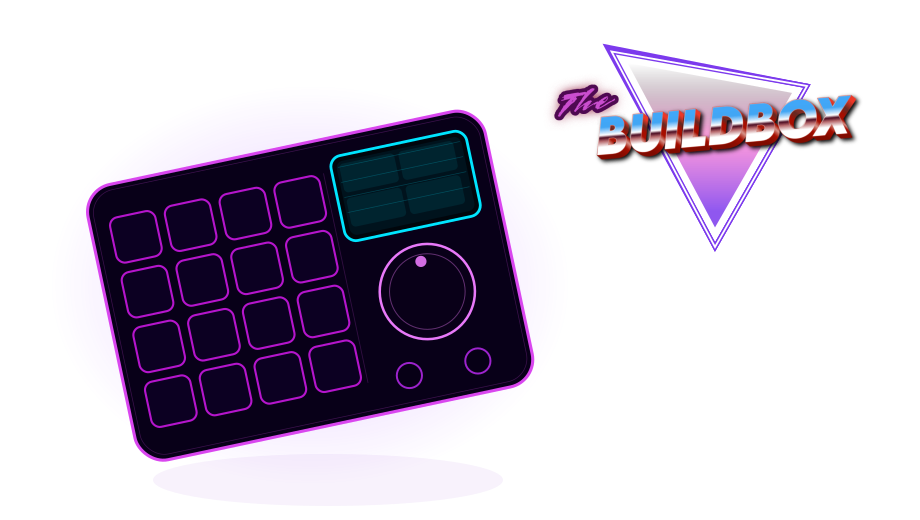
The BuildBox Macropad is the ultimate shortcut machine. One device with up to 160 configurable shortcuts for apps like Avid Media Composer available at your fingertips, a crystal clear display showing what every key does, and a hall-effect scroll wheel for scrubbing through video, audio and graphic editing applications like butter!

Drop your email below to be eligible for our first production run of 500 BuildBox units, at a HUGE discount price:

Keyboard Shortcuts for Similar Applications